

Rules and severity
PartialCatalog, under Actions: Rules (with rule:read) is where alarms come from when nobody raises
them by hand, and where what happened is recorded when nobody needs paging. An event rule watches
one property or metric on the components it selects. When the value meets its fire criteria for
long enough, the rule fires on that component: it writes an event and, when it
has a severity, raises an alarm; when the value meets its clear criteria the rule clears there, with
its own event, and the alarm clears. A rule with no severity is informational: it writes its
events and pages nobody. The alarm it opens is an ordinary alarm: its severity level
declares what it does to the component’s health (none, degraded or outage), a system slot the component
fills stops counting it only while the level declares outage, and it can be acknowledged like any other (alarms on a component).
How the evaluator works is on alarms and actions.
Beside it, Catalog, under Actions: Severity (with severity_level:read) lists the levels a rule
raises at, and is where you add your own (with severity_level:create on an all-scope grant).
Catalog, under Actions: Calc rules derives values from others for rules like these to judge
(calc rules).
Rules read like a catalog: any grant carrying rule:read, wherever it is scoped, lists every
rule. The live counts and a rule’s open alarms and streaks name components, so they cover only the
components you may read. Writing a rule is fleet-wide, since its selector reaches every component:
a caller who holds rule:create only on a grant bounded to a location or system is not offered New
rule (nor Edit, Disable or Delete without the matching permission on an all-scope grant), since the
server would refuse the write.
The rules that ship
Section titled “The rules that ship”These rules ship with Omniglass, rendered here from the seed itself:
| Rule | Reads | Fires | Clears | Writes | Severity |
|---|---|---|---|---|---|
reachability-lost (Reachability lost) | endpoint-reachable | value == "down" for 15s | value == "up" | rule-fired, rule-cleared | high |
ingest-lag-high (Ingest lag high) | ingest-lag-max | value > 30 for 2m | value <= 30 | rule-fired, rule-cleared | warning |
outpost-silent (Outpost silent) | checkin-age | value > 90 | value <= 90 | rule-fired, rule-cleared | high |
rule-sweep-stalled (Rule sweep stalled) | rule-sweep-age | value > 30 | value <= 30 | rule-fired, rule-cleared | high |
worklist-stale (Worklist stale) | worklist-pull-loss-ratio | value == 1 for 2m | value < 1 | rule-fired, rule-cleared | warning |
disk-nearly-full (Disk nearly full) | data-dir-disk-used-ratio | value > 0.9 for 2m | value <= 0.85 | rule-fired, rule-cleared | warning |
retention-behind (Retention behind) | retention-behind | value == 1 for 5m | value == 0 | rule-fired, rule-cleared | warning |
process-heap-growing (Process heap growing) | process-heap-size | age >= 86400 && span(window) >= 18000 && growth(window) > 0.25 for 1h | growth(window) <= 0.1 | rule-fired, rule-cleared | average |
process-goroutines-growing (Process goroutines growing) | process-goroutine-count | age >= 86400 && span(window) >= 18000 && growth(window) > 0.25 for 1h | growth(window) <= 0.1 | rule-fired, rule-cleared | average |
db-size-growing (Database size growing), shipped disabled | db-size | age >= 604800 && span(window) >= 72000 && growth(window) > 0.25 for 6h | growth(window) <= 0.1 | rule-fired, rule-cleared | average |
All of them are official: they update with Omniglass, so they are read-only, and the blade footer shows one
“Official, read-only” note in place of Edit and Delete. All but reachability-lost watch Omniglass itself. ingest-lag-high opens a warning alarm on
the server’s own component when the server lands telemetry more than 30 s behind its samples for 2
minutes (messaging). outpost-silent opens a high
alarm on an outpost’s own component once the outpost has gone 90 s, three heartbeats, without checking in,
and clears when it next does (outposts).
disk-nearly-full opens a warning alarm on the server’s component when the filesystem holding its
data directory stays over 90% used for 2 minutes, and clears once it is back at 85% or under
(collection).
retention-behind opens a warning alarm on the server’s component when a retention lane stays
behind its window for 5 minutes (storage).
Three judge a trend rather than a level (write a trend rule, below), each an
average alarm: process-heap-growing and process-goroutines-growing open on a process’s platform
component when its heap or goroutine count has risen steadily by more than a quarter over six hours,
held an hour, once the process has run a day (so a restart’s refill is not read as a leak), and
db-size-growing on the server’s component when the database has grown by more than a quarter over
a day, held six hours, once db-size has a week of history (so a fresh install filling its retention
windows is not read as bloat).
db-size-growing ships disabled, the one official rule that does: db-size alone cannot tell bloat
from a fleet that grew, and an install that onboards most of its devices on days 4 to 6 is still filling
its retention window past day 7, when a day’s fill is more than a quarter of the database. An official
rule is read-only, so to run it, author your own from its criteria once your fleet has settled (it runs
beside the shipped one, which stays off):
omniglass event-rule create --name db-growing --label "Database growing" --sample-key db-size \ --sample-window 24h --fire-criteria '{"expr":"age >= 604800 && span(window) >= 72000 && growth(window) > 0.25"}' \ --fire-sustain 6h --clear-criteria '{"expr":"growth(window) <= 0.1"}' --severity average \ --fire-event-type rule-fired --clear-event-type rule-clearedreachability-lost is what makes an unplugged component move its system: unplug a
simulated component (simulate a fleet) and, once
its endpoint has read down for the rule’s fire sustain (above), the rule’s row on the Event rules page
shows 1 open, its blade lists the component and the endpoint, and the component and its system
carry an alarm at the rule’s severity with its label as the message. The sustain is timed from the
server’s receipt of the first down sample, and judged on the server’s 5s sweep tick, so the alarm
opens up to a tick after the sustain runs out. Opened from its system, the component’s blade names the
rule beside the alarm (by rule reachability-lost), so an alarm a rule raised is never mistaken
for one a person raised. Plug it back in and the next up reading clears it.
A person can clear a rule’s alarm by hand, and the hand clear holds until the rule clears and
fires again: the rule acts on edges, not on every sample, so a component that keeps reporting down
does not reopen it. The rule stays firing and the events it wrote are untouched; once the
component reads up the rule clears, and the next time it goes down (for the sustain) the rule
raises a new alarm.
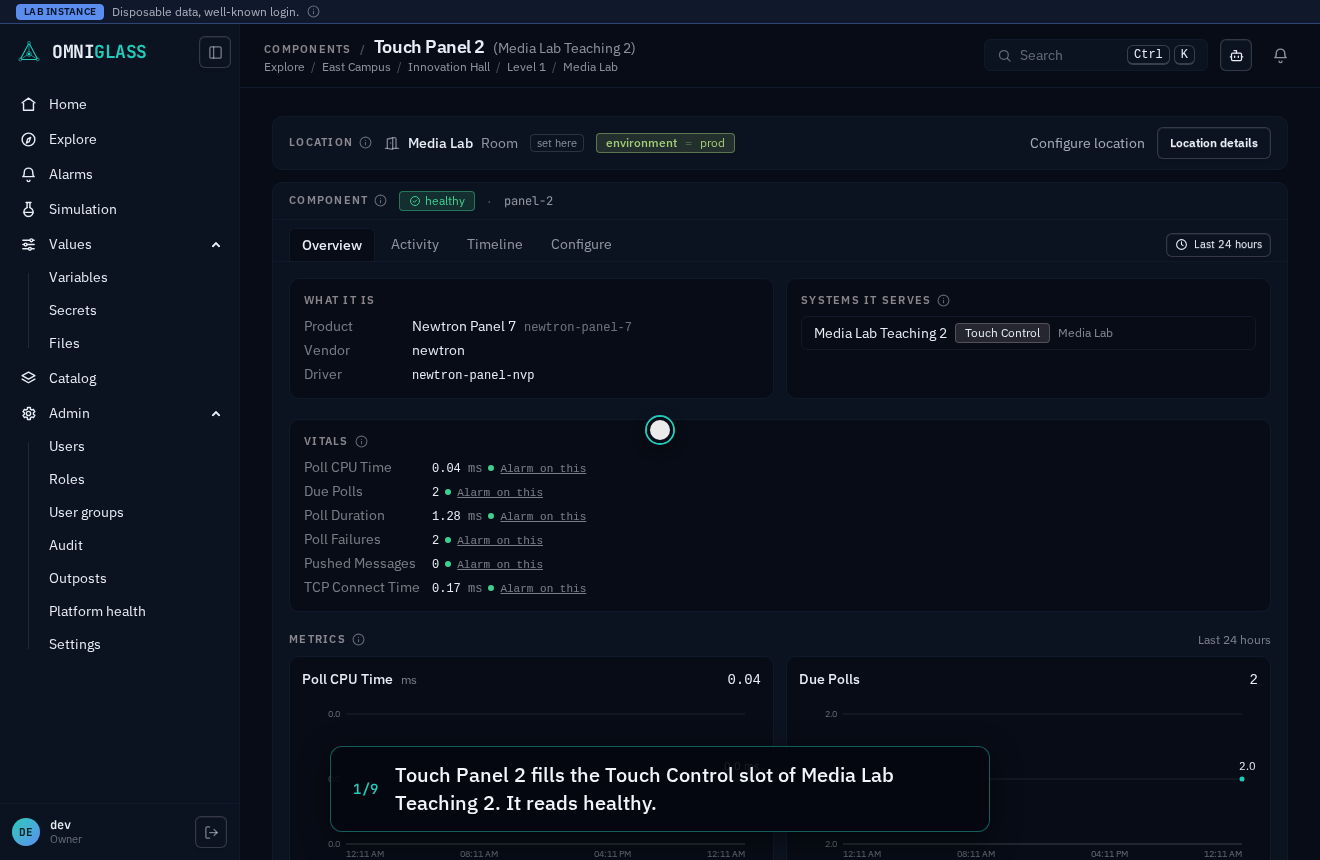
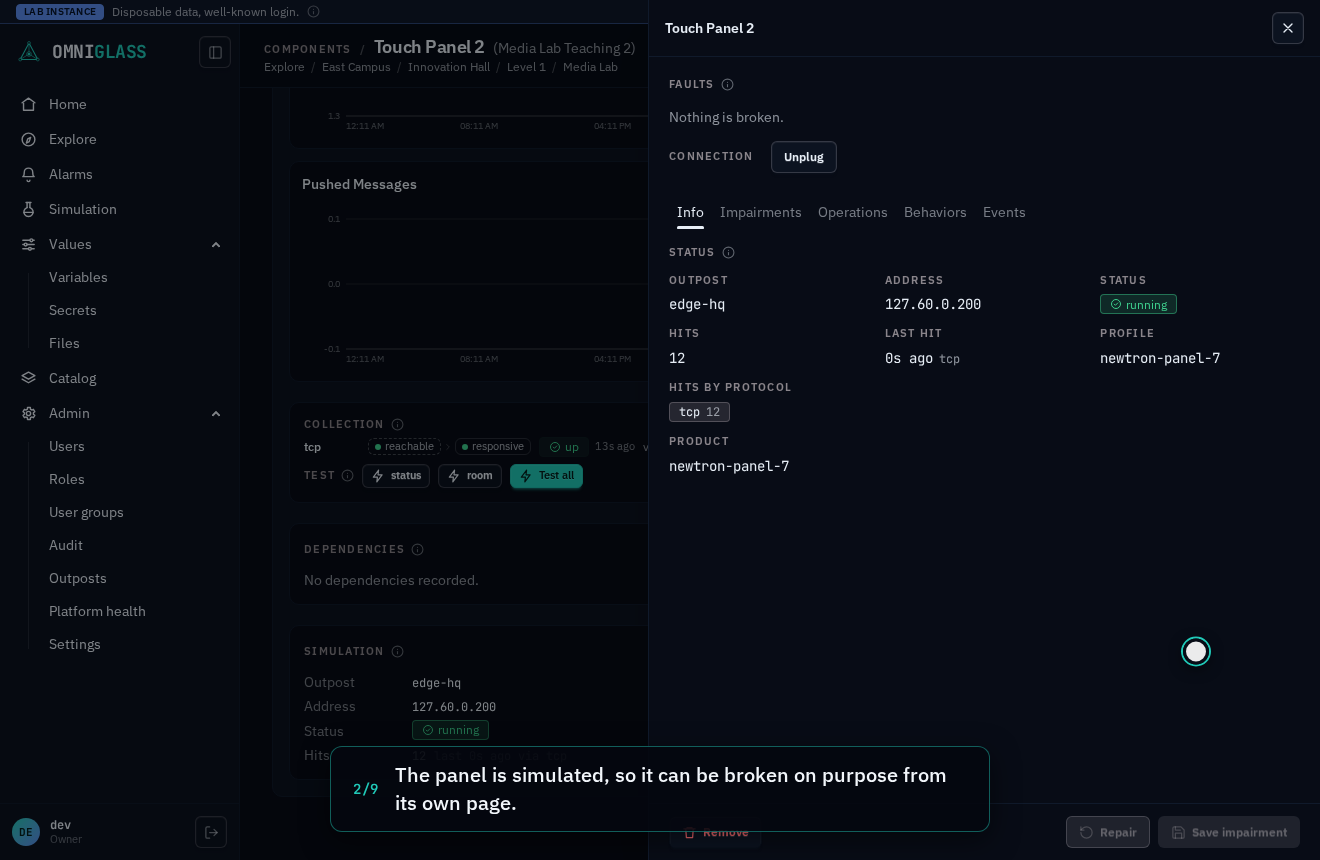
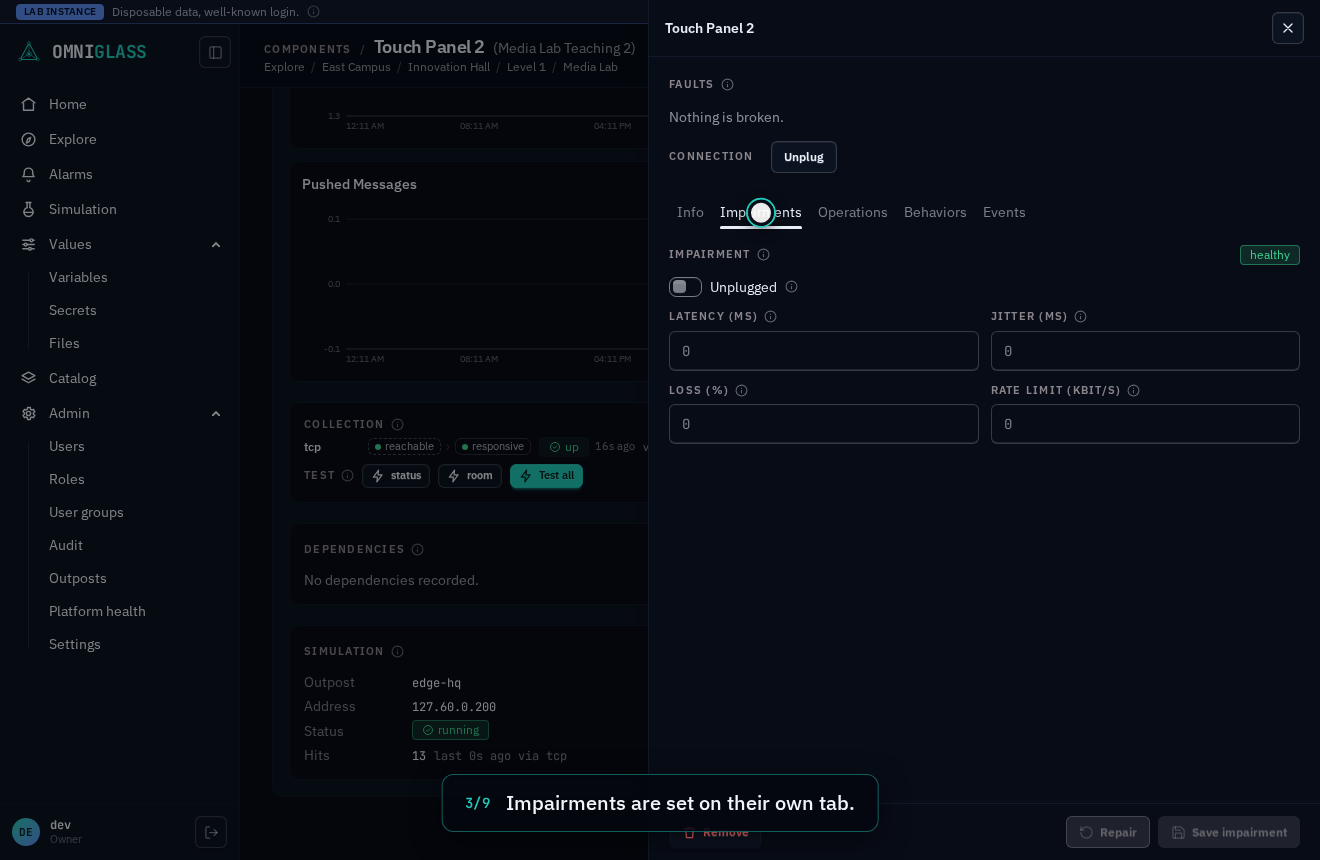
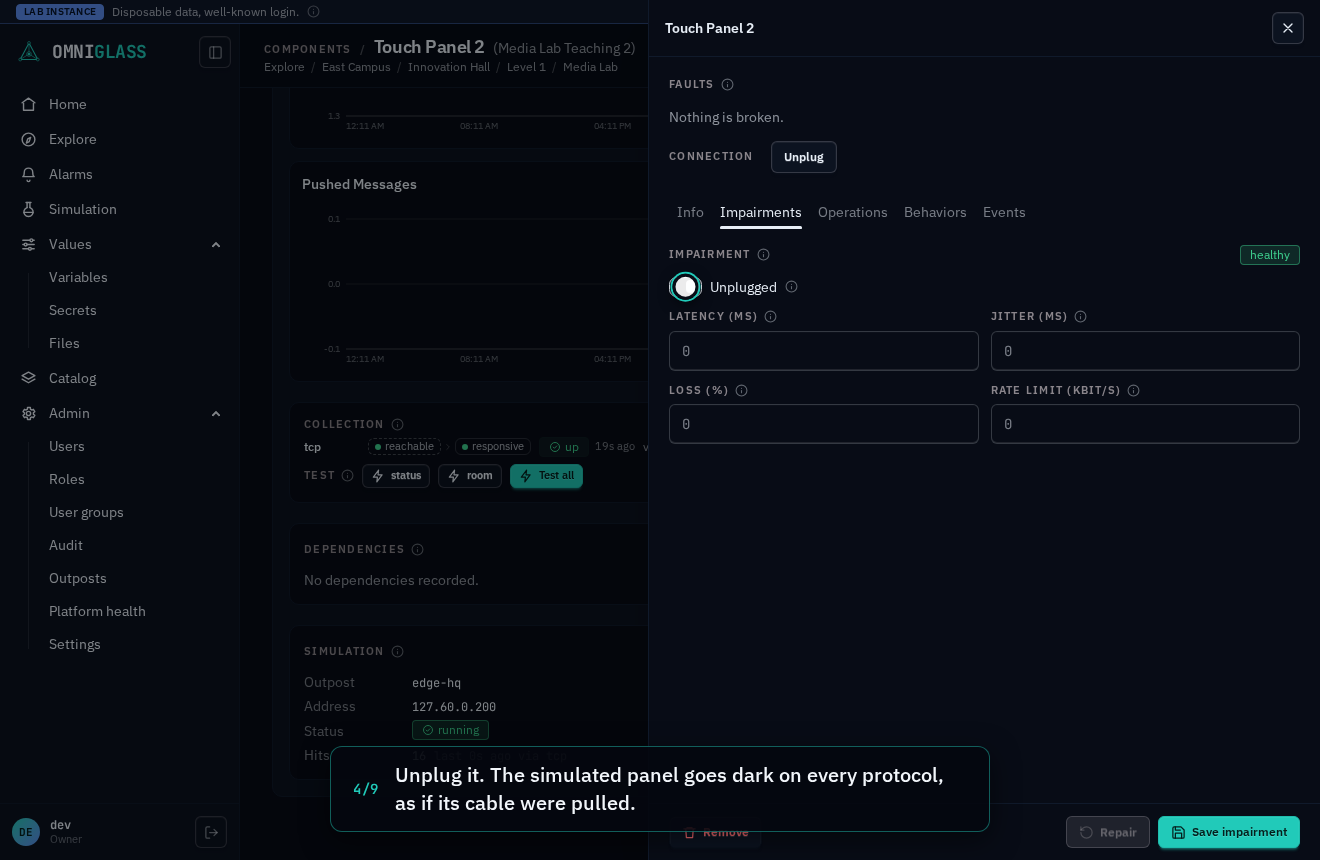
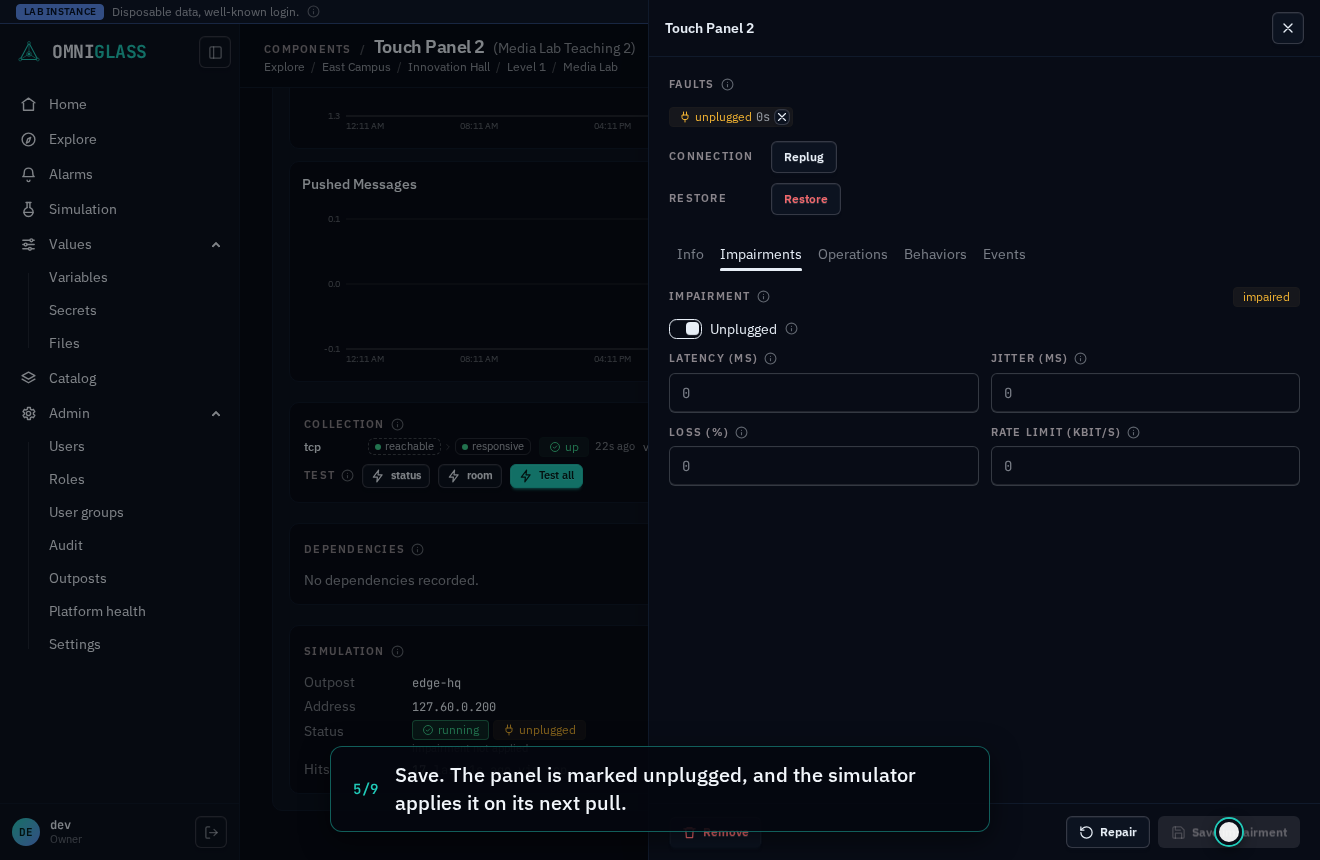
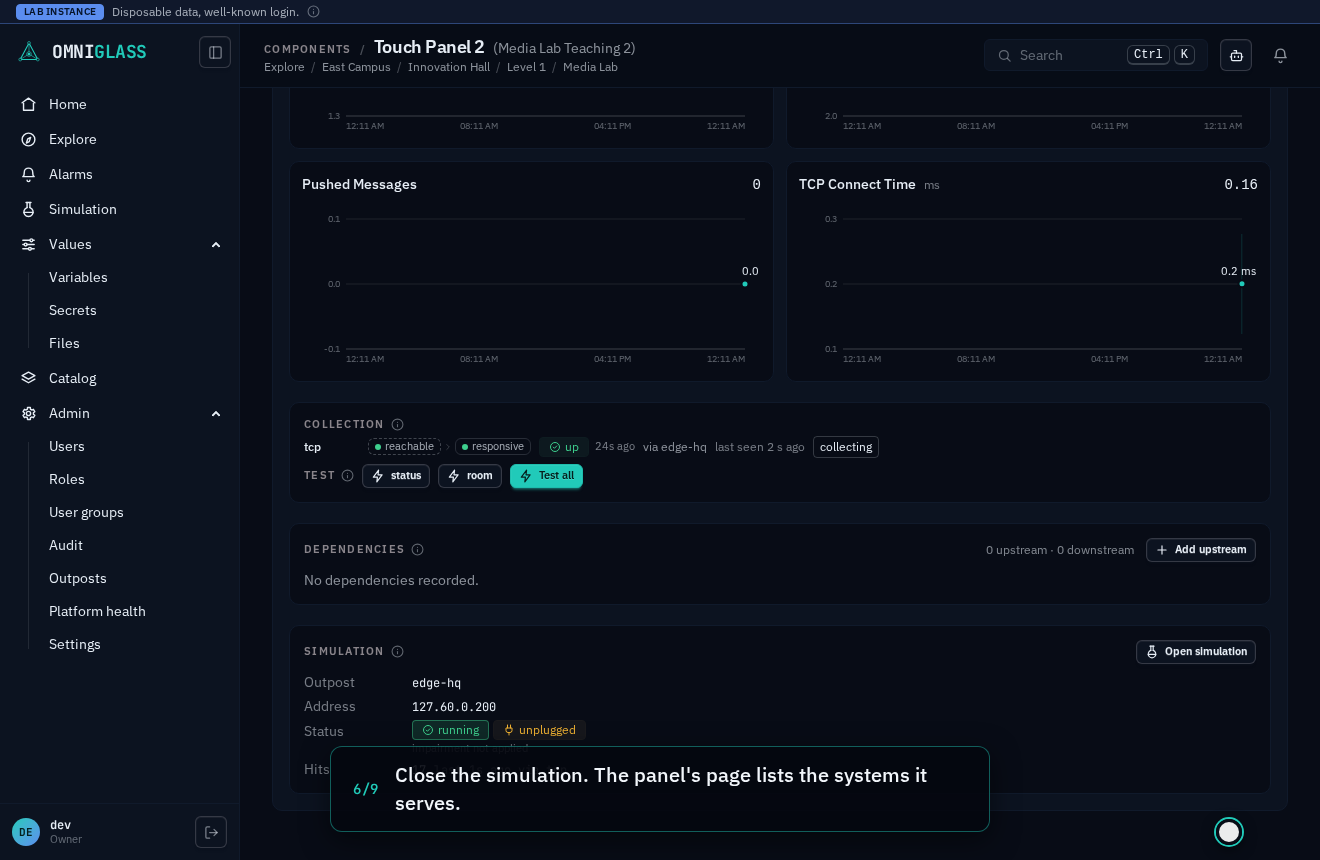
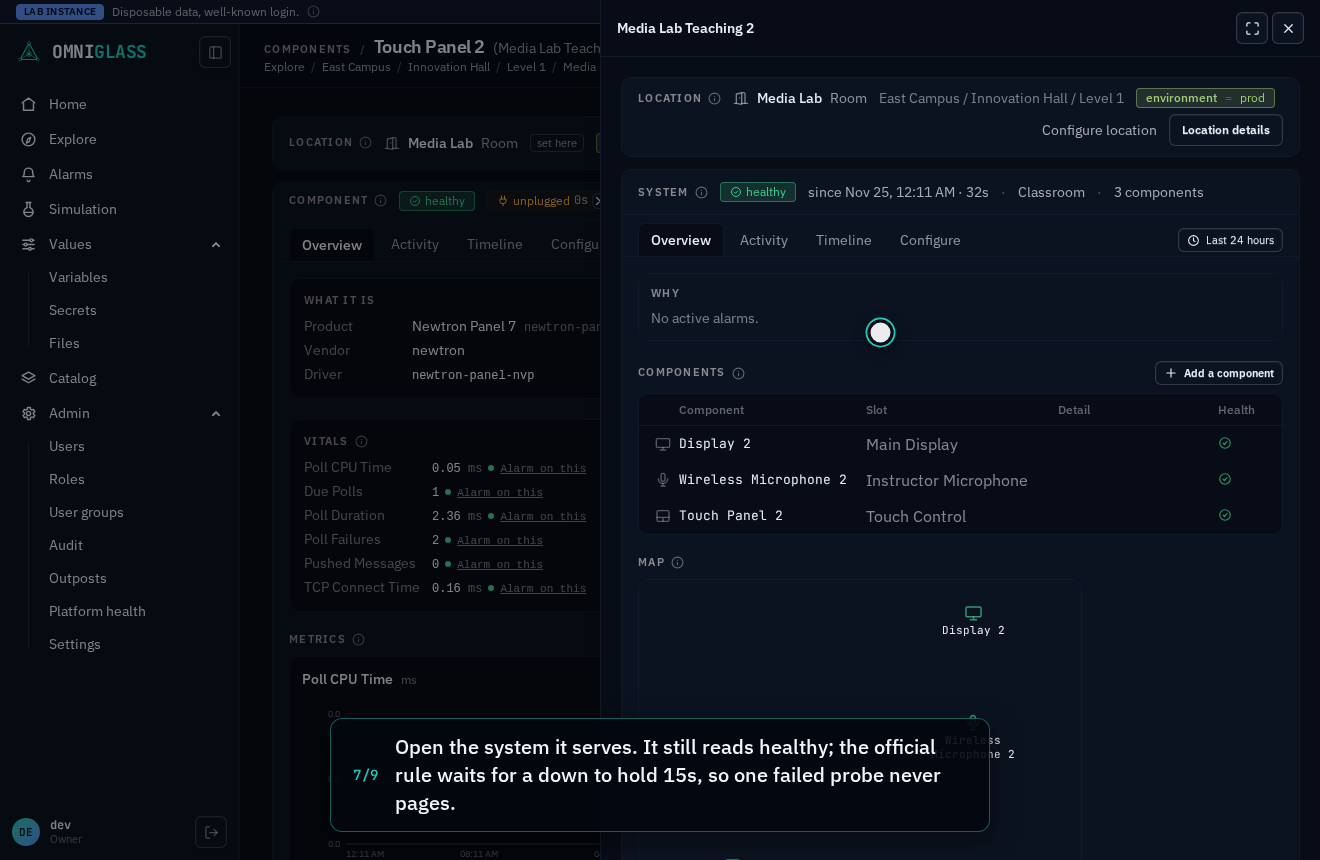
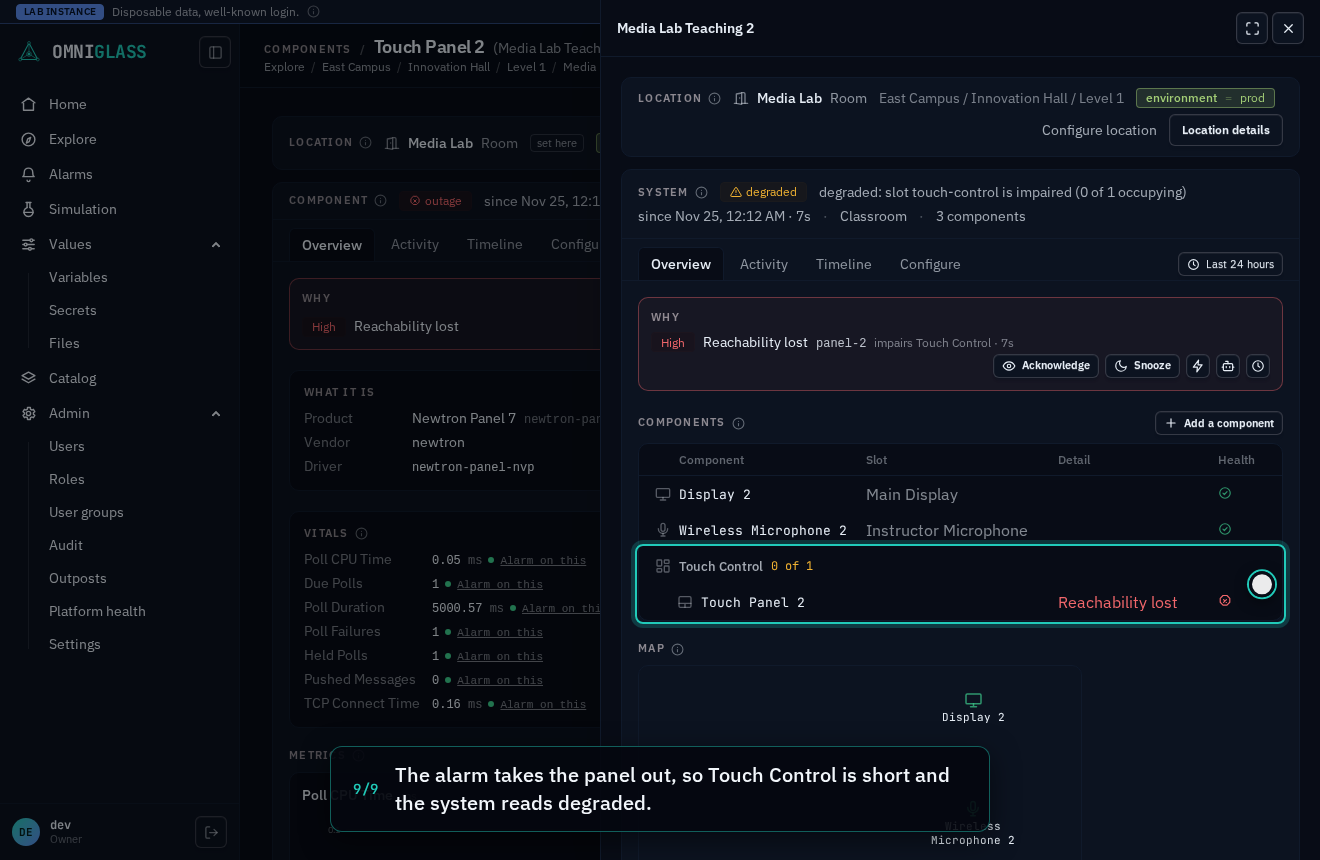
The walkthrough below unplugs a simulated touch panel, opens the system it serves, and watches it live: the system reads healthy while the rule waits out the sustain, then the rule’s alarm lands in Why and the system goes degraded, with no reload. The rule’s own blade shows the same story from its side (the streak pending, then the open alarm), and an alarm’s event on the system’s Activity names the rule that wrote it and opens it. Plugging the panel back in is left out: the wait for the alarm fills most of the recording’s minute, and the replug (three clicks on the panel’s page) and the clear measured 13 to 17 seconds more, past the minute.
Every step, captioned (9 steps)
Touch Panel 2 fills the Touch Control slot of Media Lab Teaching 2. It reads healthy.
The panel is simulated, so it can be broken on purpose from its own page.
Impairments are set on their own tab.
Unplug it. The simulated panel goes dark on every protocol, as if its cable were pulled.
Save. The panel is marked unplugged, and the simulator applies it on its next pull.
Close the simulation. The panel's page lists the systems it serves.
Open the system it serves. It still reads healthy; the official rule waits for a down to hold 15s, so one failed probe never pages.
The down held, so the rule opened a High alarm on the panel. The system's view refreshes on its own, so Why names it with no reload.
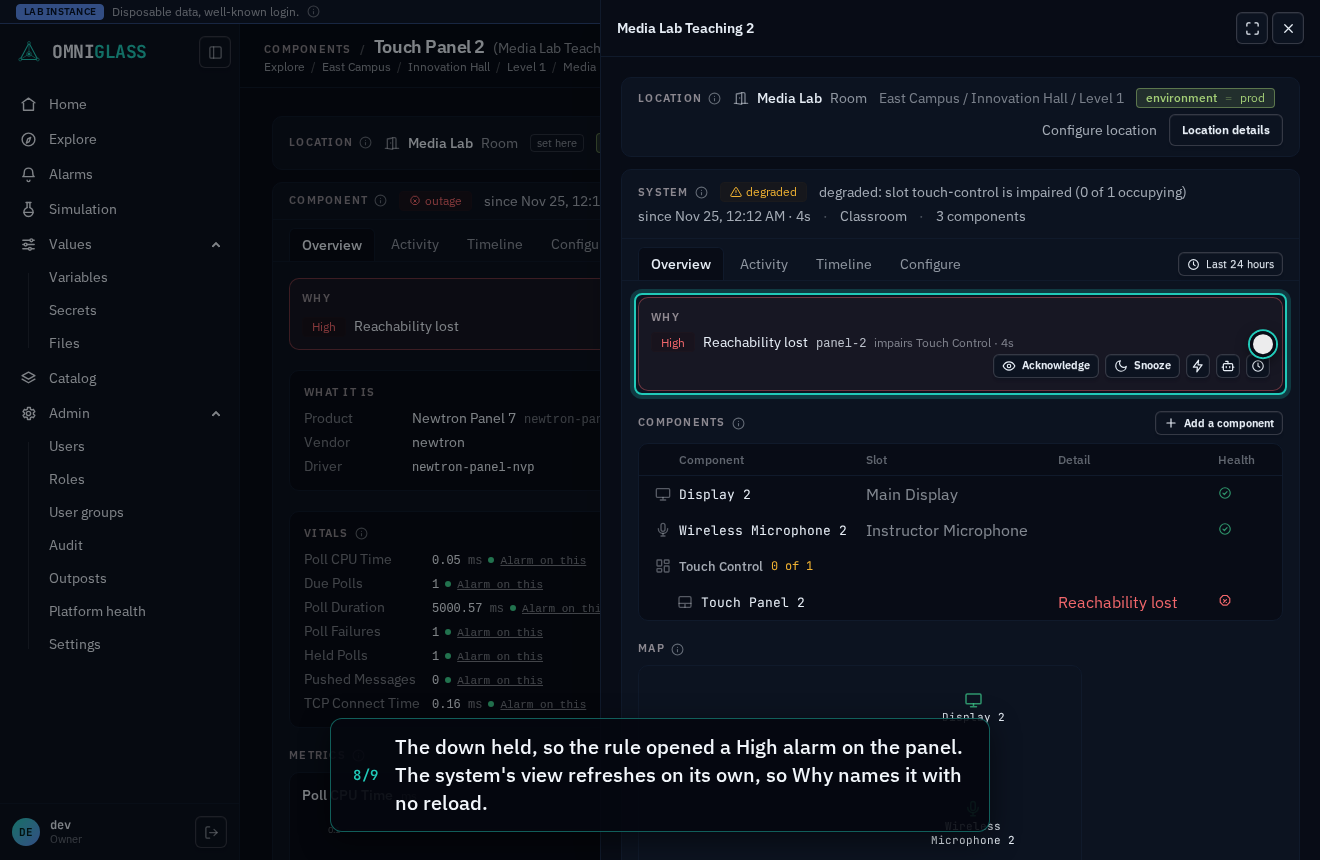
The alarm takes the panel out, so Touch Control is short and the system reads degraded.
Read the list
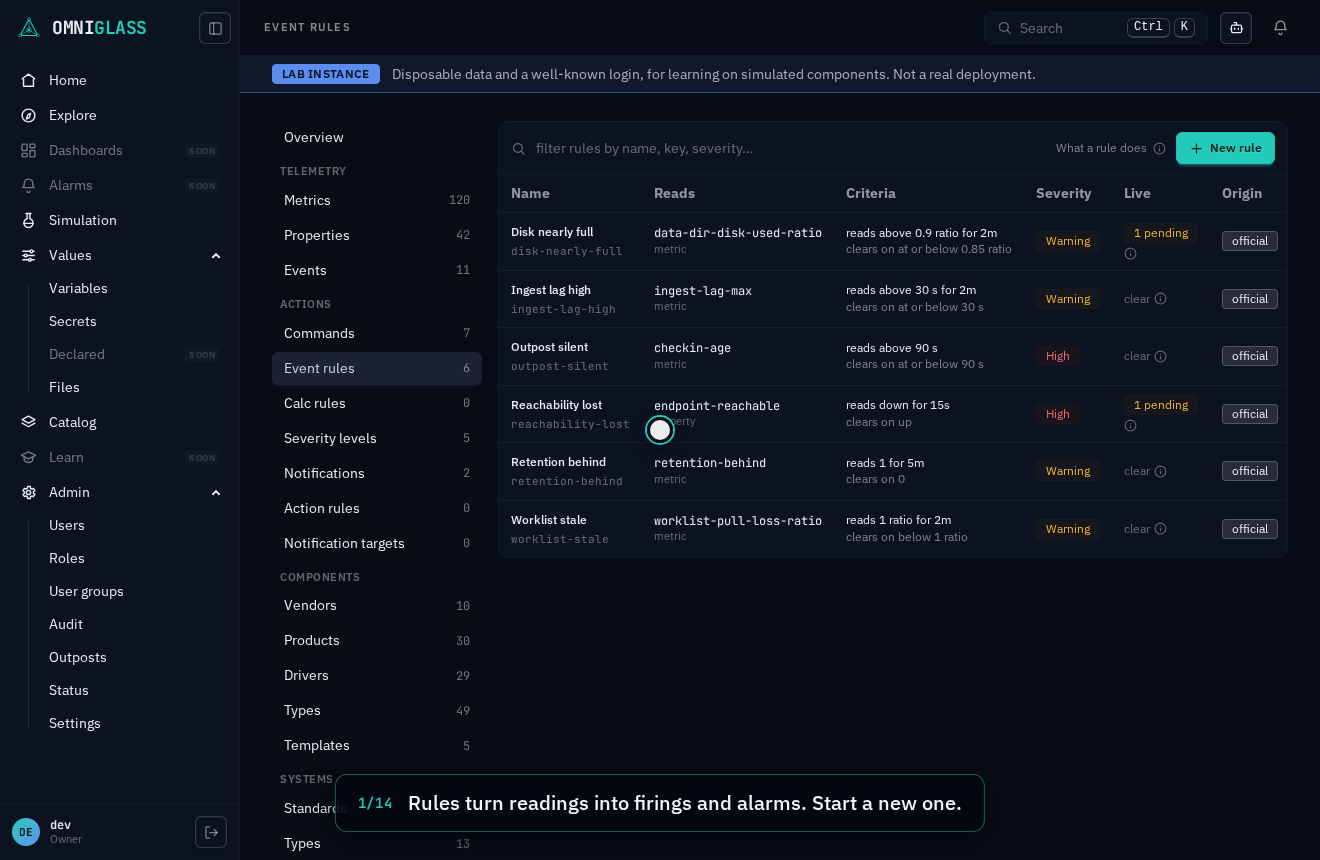
Section titled “Read the list”Each row is a rule: its name (label above), what it reads (the sample key and its lane), its criteria in words (“reads above 40 °C for 1m”, “clears on the opposite”), its severity in the level’s color (or a grey informational chip for a rule that raises no alarm), its live state, and its origin (official or custom). The live column counts ride on the list itself, which refreshes every 10 seconds:
- N firing: the rule’s firings right now, one per component and endpoint where it is firing. Every rule fires, informational or not.
- N open: alarms the rule raised that are still open, one per component and endpoint.
- N pending: components whose samples point at fire (or clear) and are waiting out the sustain.
- disabled: the rule evaluates nothing, and holds nothing open (disabling cleared it).
- clear: enabled, and holding nothing right now.
The (i) at the end of each live cell says when the rule last judged a sample (“Last judged a sample 12s ago (to within 5s)”), or that it has not judged one yet (“Has not judged a sample yet”). That is what tells a quiet rule from a deaf one: a rule reading clear that judged a sample seconds ago is watching a healthy fleet, while one that has not judged anything for an hour reads a key that has stopped arriving (a probe removed, a collector down) and would not notice a fault. The time is to within 5 seconds, since the server writes it at most once per rule every 5 seconds rather than on every sample.
Pick a row to open its blade: the criteria, what it watches, when it last judged a sample (the Last judged fact), and the two live lists, each component linked to its own page with where it sits.
Write a rule
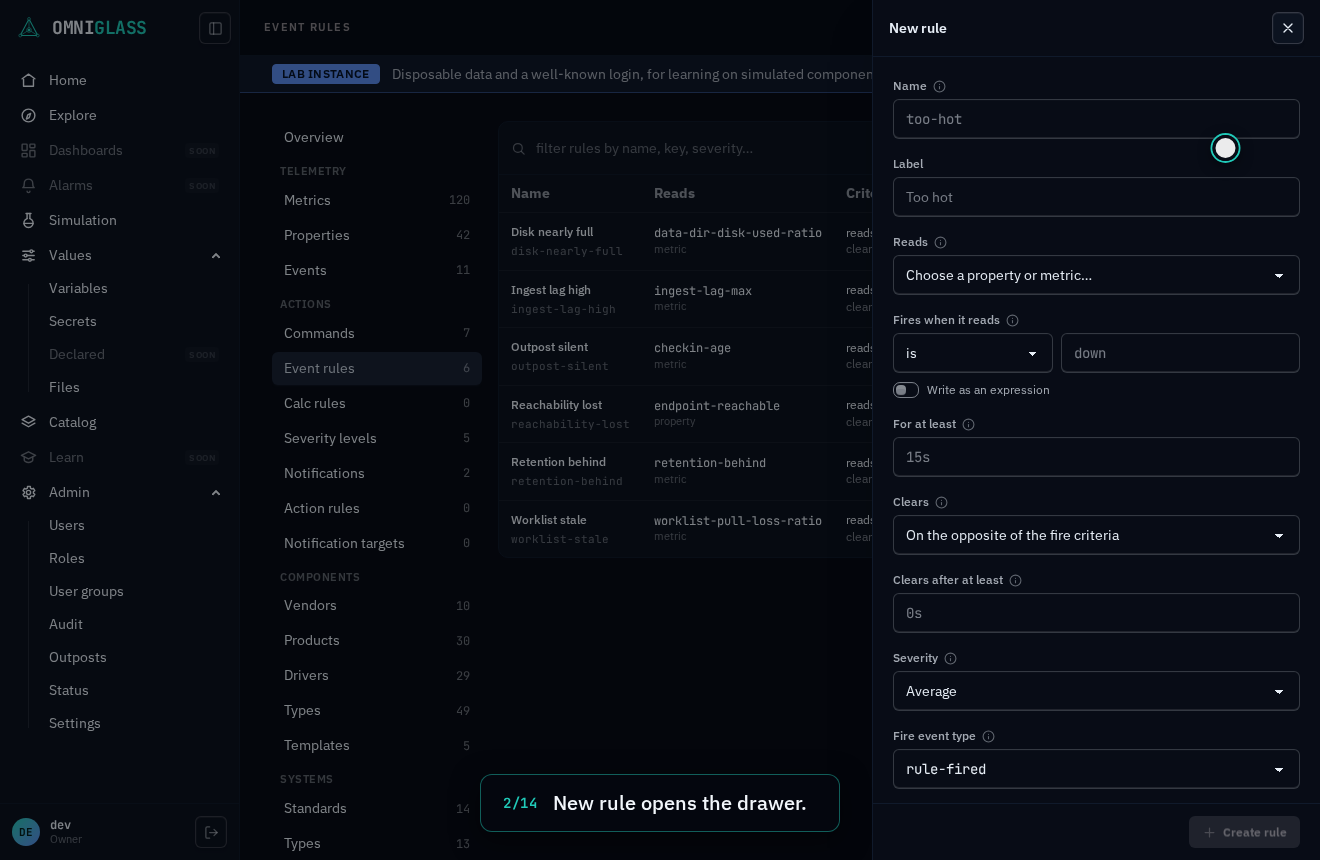
Section titled “Write a rule”New rule (with rule:create) opens a drawer. The fields, top to bottom:
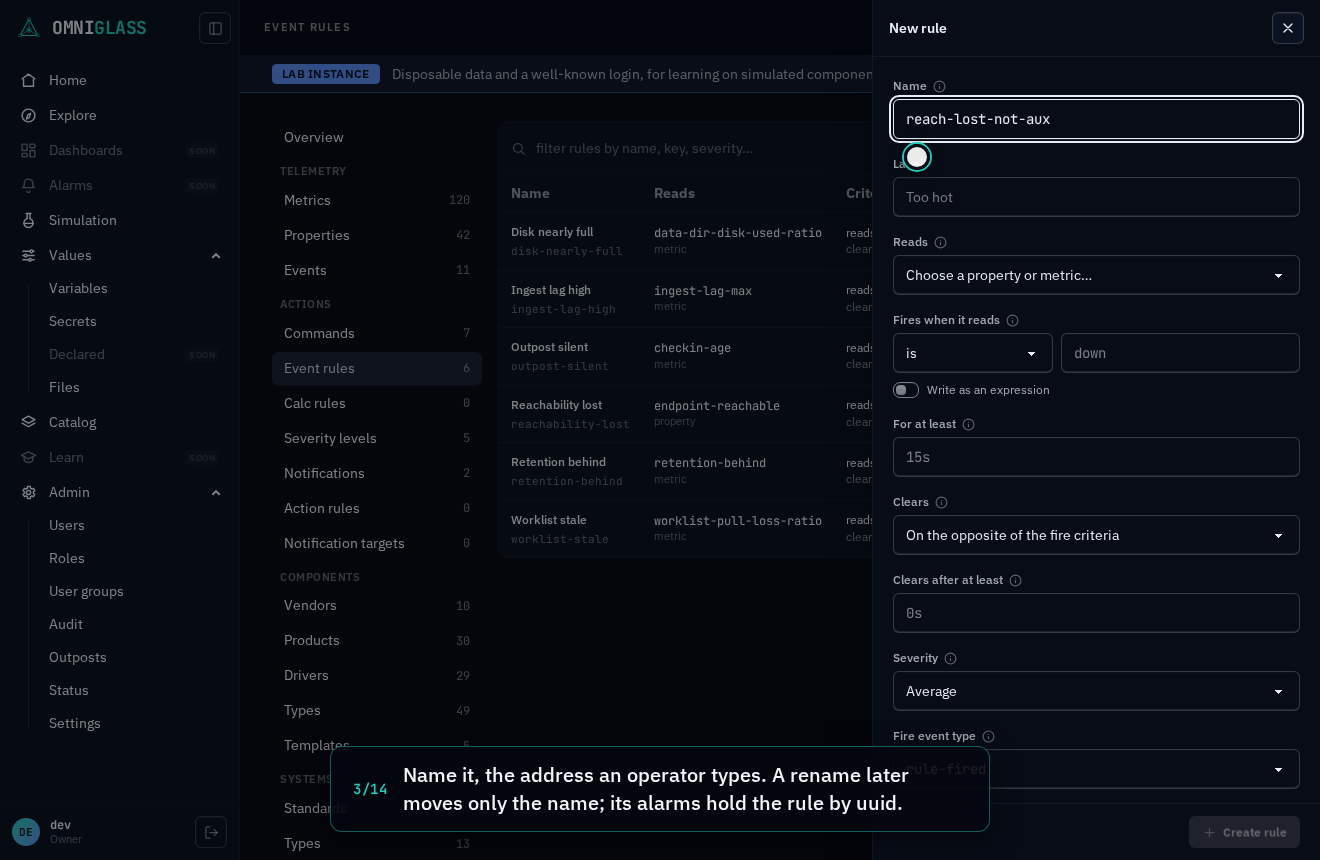
- Name: a lowercase kebab name (
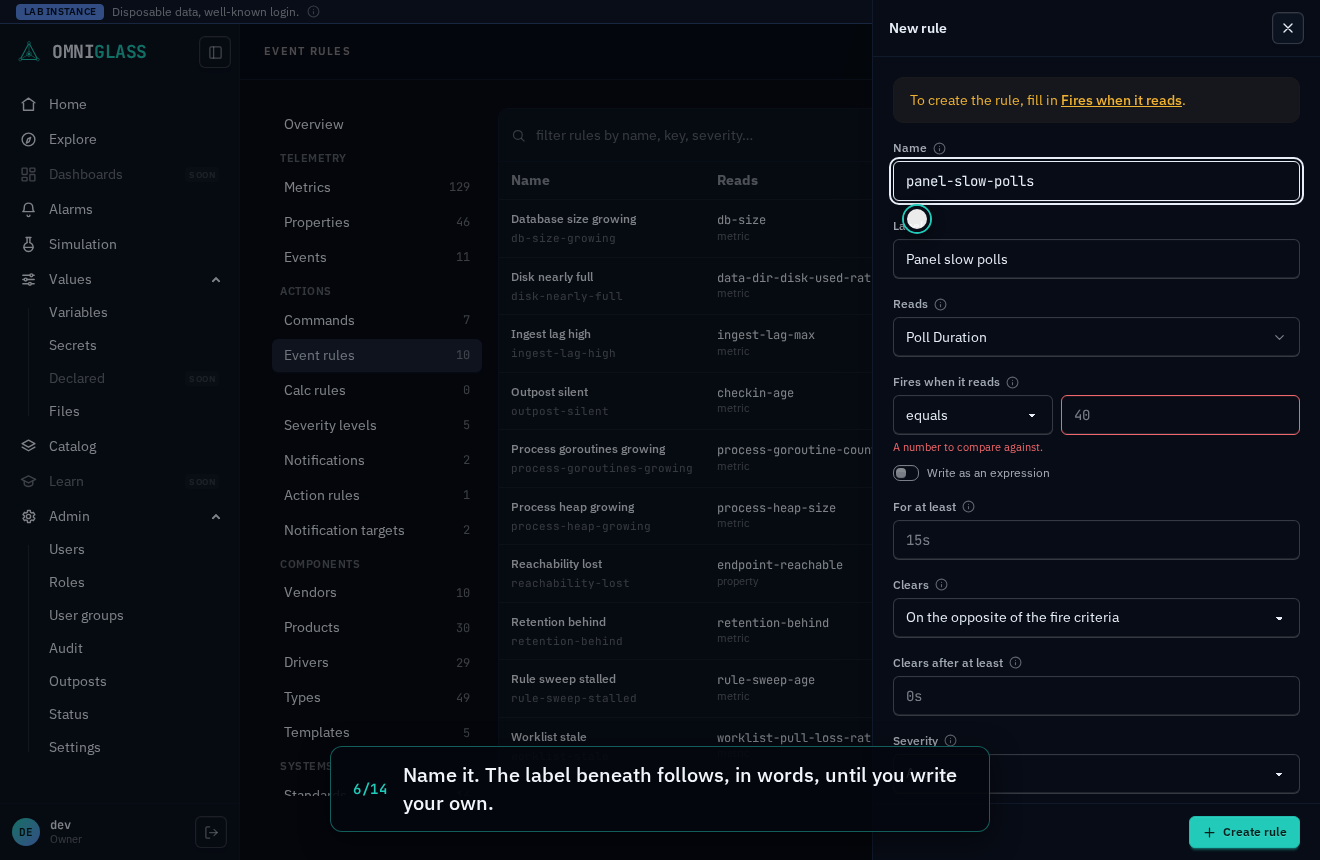
input-moved), the address you type and a link carries. It can be renamed later (see Rename). - Label: optional; it is also the alarm’s message when Message is blank. It follows the name
as you type it (
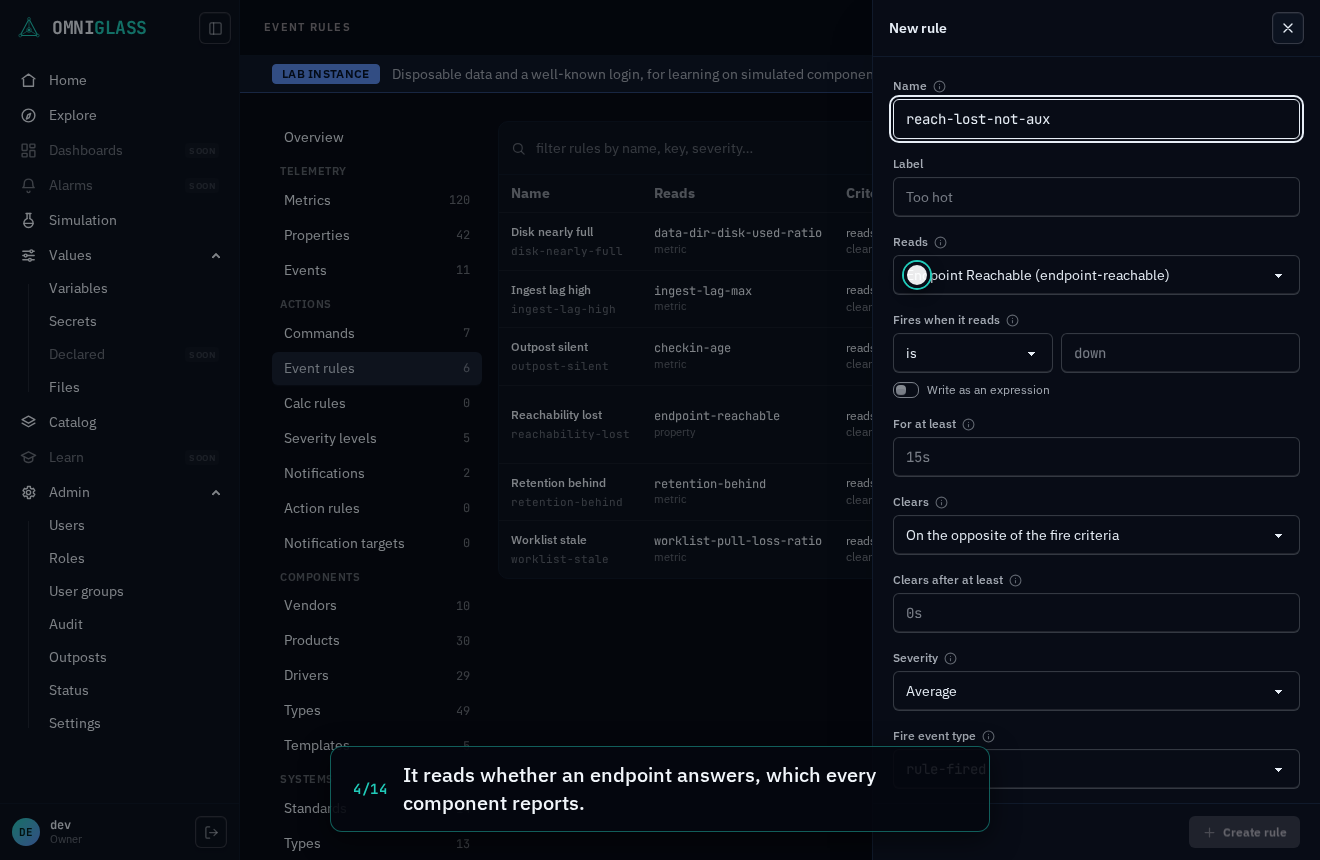
catalog-cpu-hotsuggestsCatalog cpu hot: the hyphens become spaces and the first letter is capitalised, nothing else, so an acronym you wrote is left as typed) until you write one of your own, so a rule saved without a second thought still reads as words in the list. - Reads: one property or metric from the catalogs, found by typing: the list filters on the label and the name, groups metrics and properties under their own headings, and shows each option’s name and unit beside its label. When the rule watches exactly one component, that component’s own metrics and properties come first under On its name. Its lane decides how it compares: a property is text, compared only for equality; a metric is a number, compared any way. The comparison list beside the value offers exactly what the chosen key’s lane allows, in words.
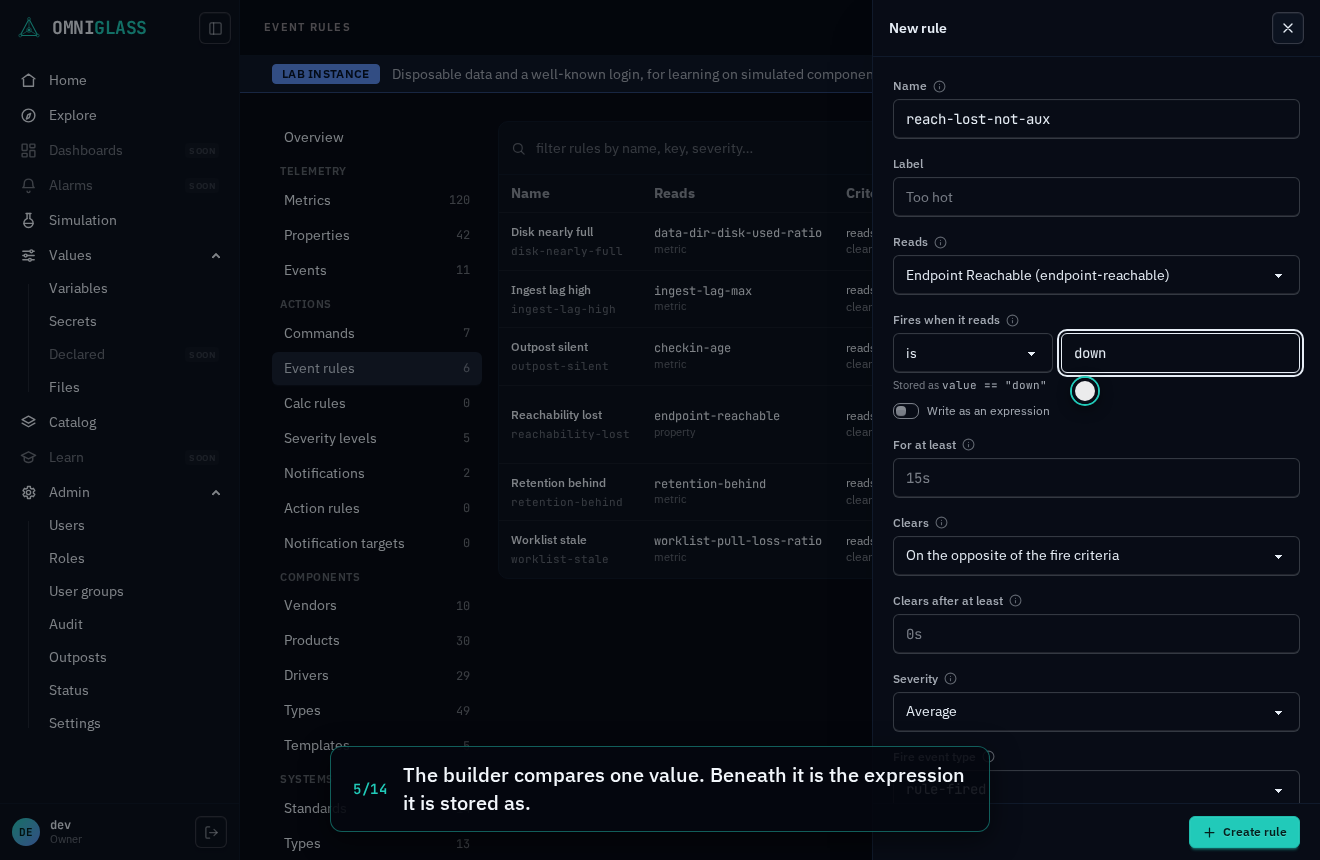
- Fires when it reads: the comparison and the value that open an alarm. The value is used exactly
as typed: a property value with leading or trailing spaces is refused rather than trimmed (it would
never match), and a metric value must be a plain decimal (
40,-2.5). Beneath it the form shows the expression the comparison is stored as (value == "down",value > 40.0), so the builder teaches the language. - Write as an expression: switches the criteria to an expression, starting from the one the
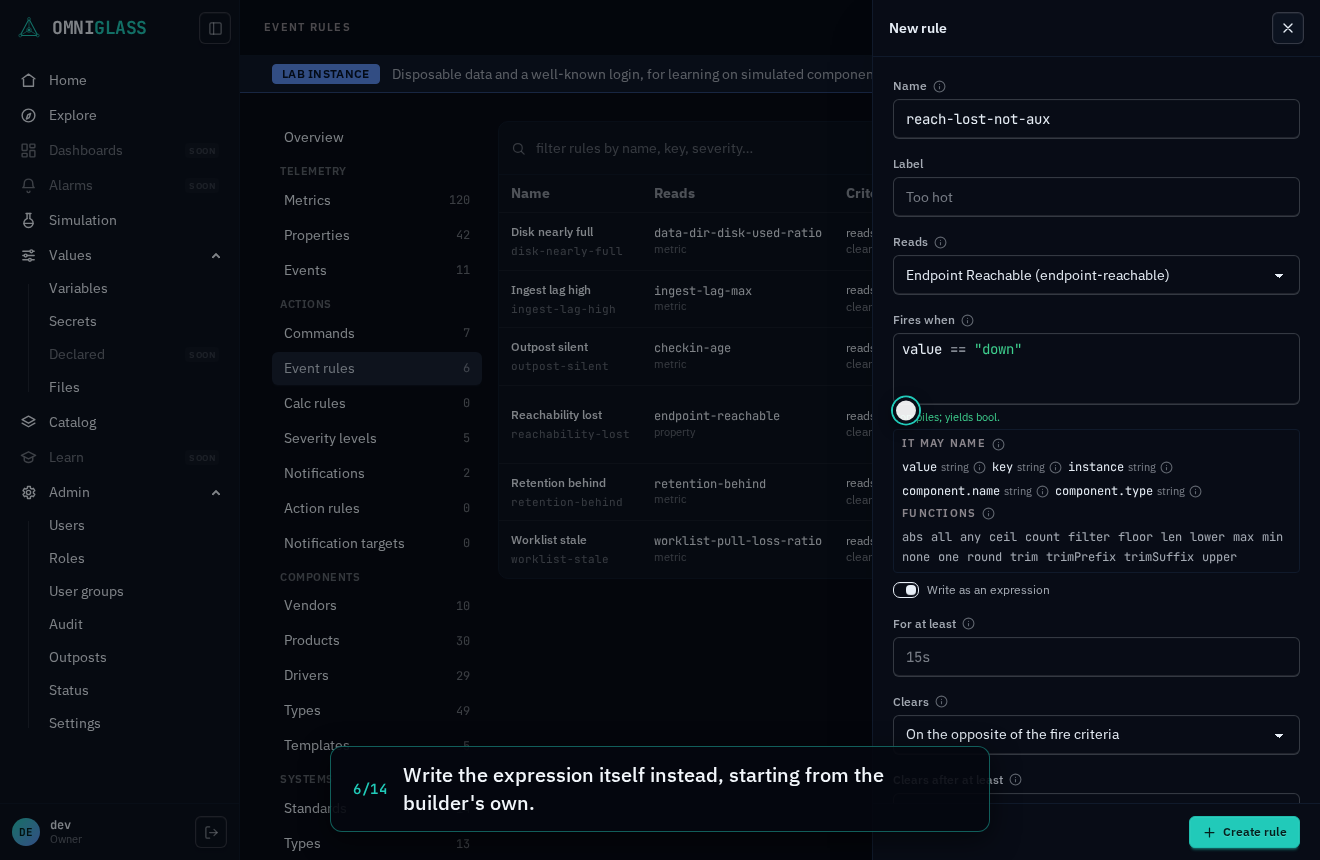
comparison lowers to. Write any true-or-false expression over the sample:
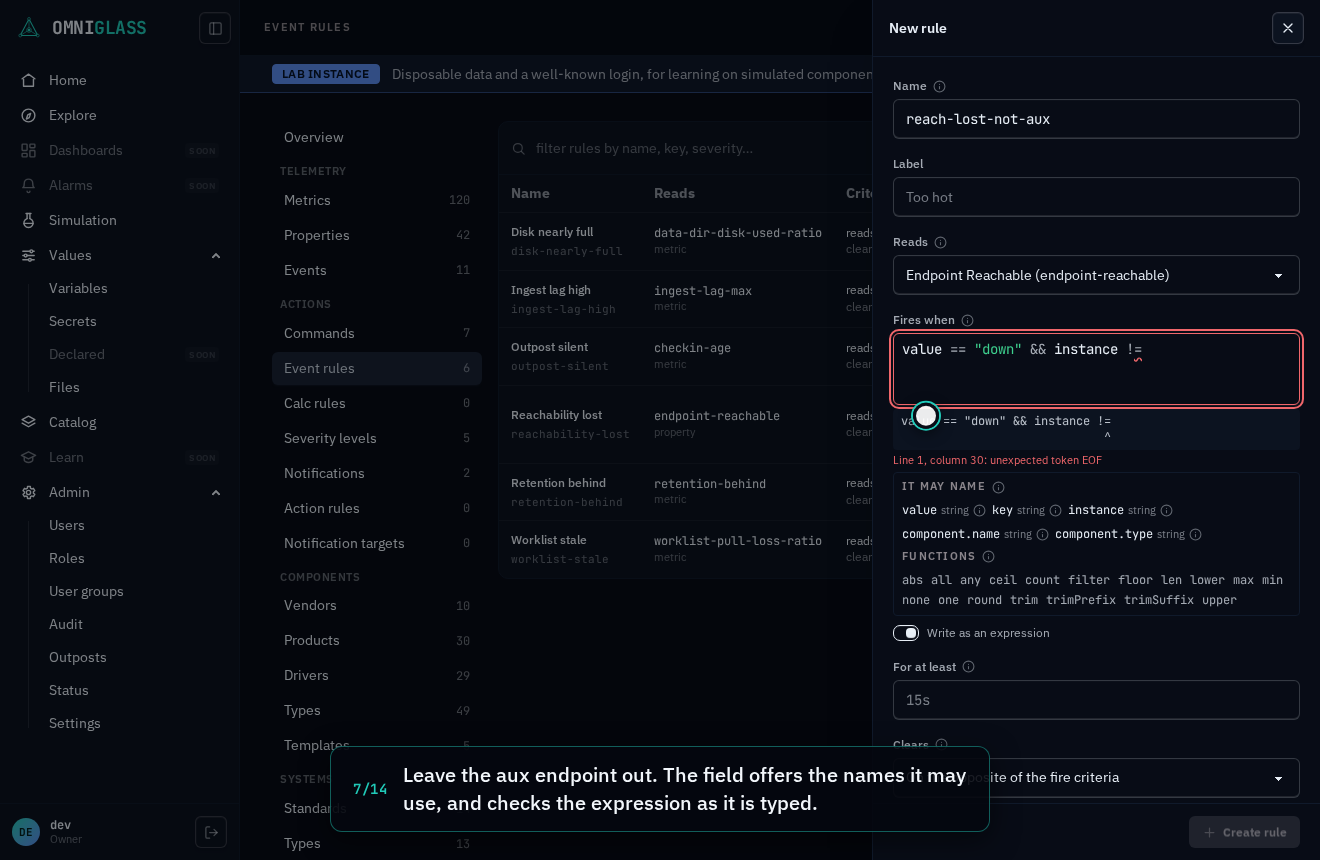
value,key,instance, and thecomponentwith itsnameandtype, with comparisons,&&,||,!and a few functions (value == "down" && instance != "aux"). The field is a code editor: it colors the expression as you write it, offers the names it may use and the functions it may call as you begin a word (Ctrl-Space asks at any point; Enter takes the highlighted one, Tab moves on to the next field), and shows what a name holds when you hover it. It is checked as you type: a mistake is underlined where it sits and pointed at under its line and column, and beneath the field are the names and functions again, each with what it means. A common mistake is said plainly, and an expression that saves but is probably wrong (value == 21.5, which a measured number seldom equals exactly) carries a warning in amber, which never stops the save; where a mistake has a one-click fix, a button beside it applies it (Ctrl-Z takes it back), and its code links to the diagnostics table. A saved rule’s warnings show on its blade as a note. A rule written as an expression opens in this mode. Switching back to the builder keeps the comparison when the expression still is one; an expression the builder cannot say is kept, and comes back when you switch to an expression again. A rule whose criteria no longer compile (its key’s data type changed, say) reads criteria do not compile in the list, and its blade says which criteria, where, and why; it judges nothing until they are rewritten. - For at least: the fire sustain, a duration (
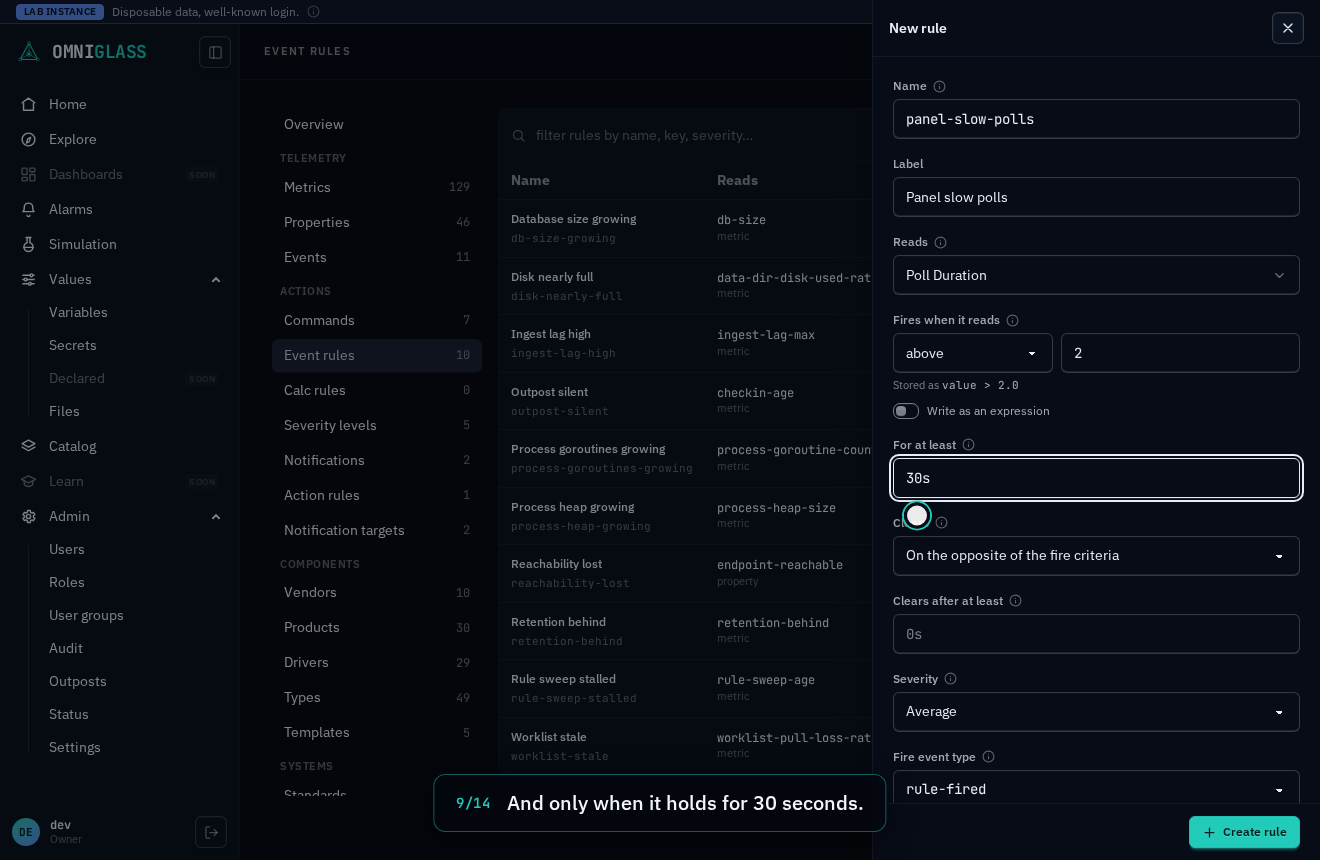
30s,2m). The value has to keep meeting the criteria this long before the alarm opens; one sample that does not starts the wait over. The sustain is timed from the server’s receipt of the first sample that meets the criteria and judged on the server’s 5s sweep tick. Blank acts at once. - Clears: on the opposite of the fire criteria, or on criteria of their own (then Clears when it reads asks for them). A rule that fires above 40 and clears below 35 does not flap at 39.9. The clear criteria take a comparison or an expression the same way.
- Clears after at least: the clear sustain, set independently: a long clear sustain holds an alarm through a noisy recovery without delaying the alarm.
- Severity: the level the alarm is raised at, worst first. A level declares its health effect: outage takes its component out, degraded degrades it, and none leaves it healthy (the alarm is still listed). None (informational) makes a rule that records what happened as events and raises no alarm: it pages nobody and moves no health. A new rule starts at the worst level that does not take its component out; editing a rule never fills a level in for it.
- Fire event type and Clear event type: the events the rule writes,
from the event type catalog. The fire type is required and is written once when the rule fires
(after the fire sustain); the clear type is optional (No clear event) and is written
once when it clears (after the clear sustain).
rule-firedandrule-clearedare the generic pair; a pair the catalog already models (call-started/call-ended) says what happened instead. - Watches component types and Watches components: the components it selects. A type
includes every type beneath it. Leave both empty to watch every component. Components are found by
typing too, and each option shows where the component sits (its location and system), since a
fleet repeats labels: forty panels can all be
Display 1. - Message, Description, Enabled.
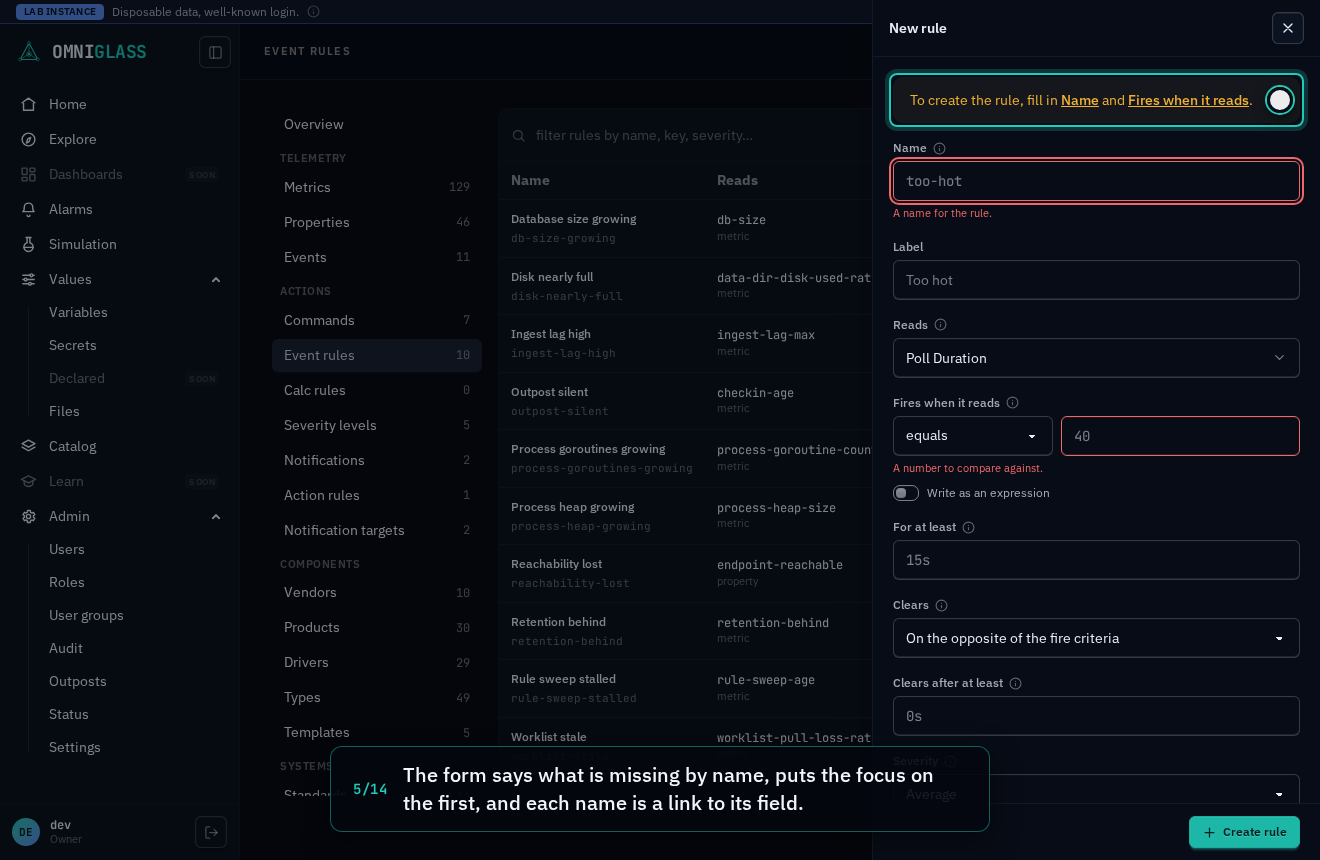
Every field is checked as you type. Create rule is never greyed: pressed with the rule not whole, it says so in one sentence above the form (To create the rule, fill in Name, Reads and Fires when it reads.), puts the focus on the first field that needs fixing, and each name in the sentence takes you to its field, with the reason beside it. When it is created, the rule judges the newest sample of every series it selects at once, so criteria that already hold start their sustain then rather than waiting for the next change.
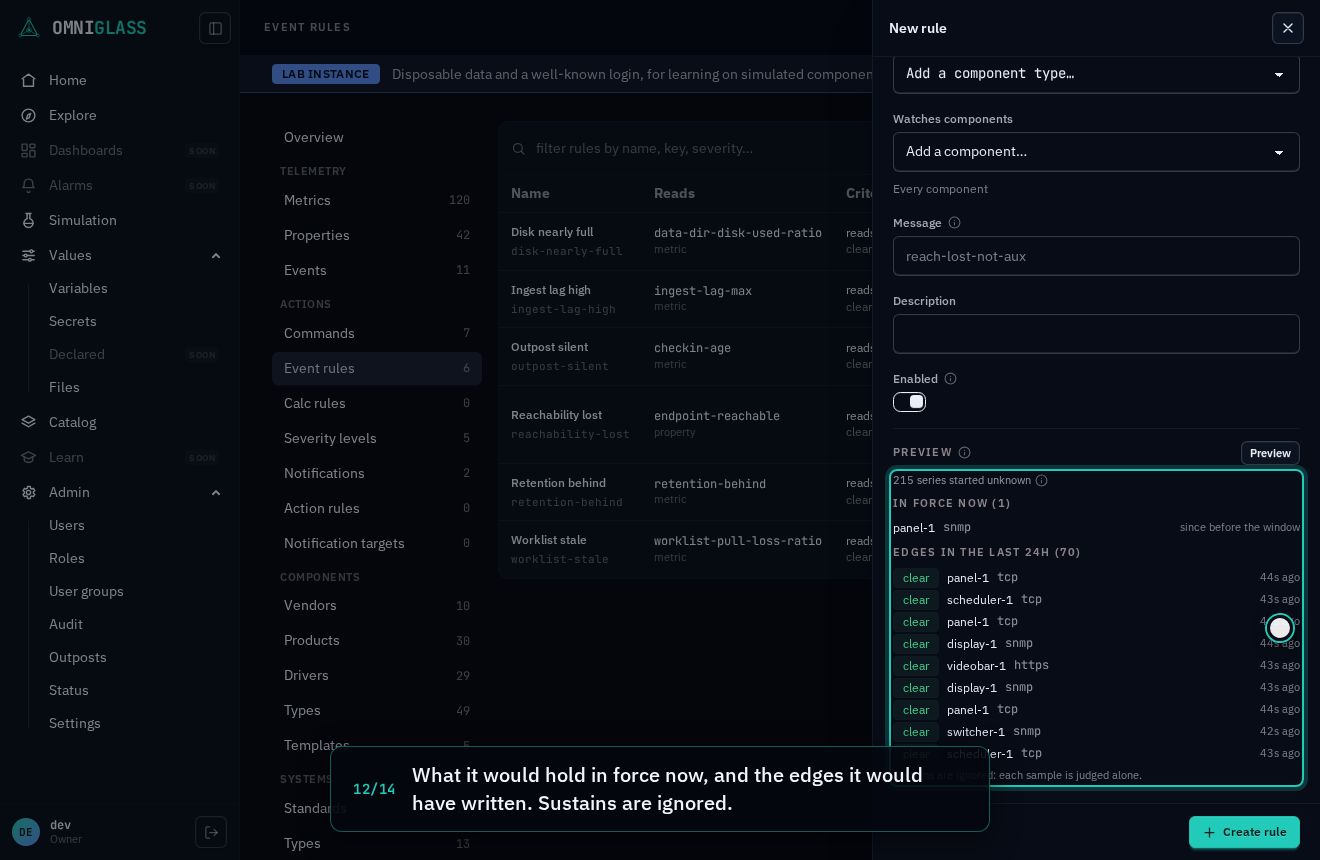
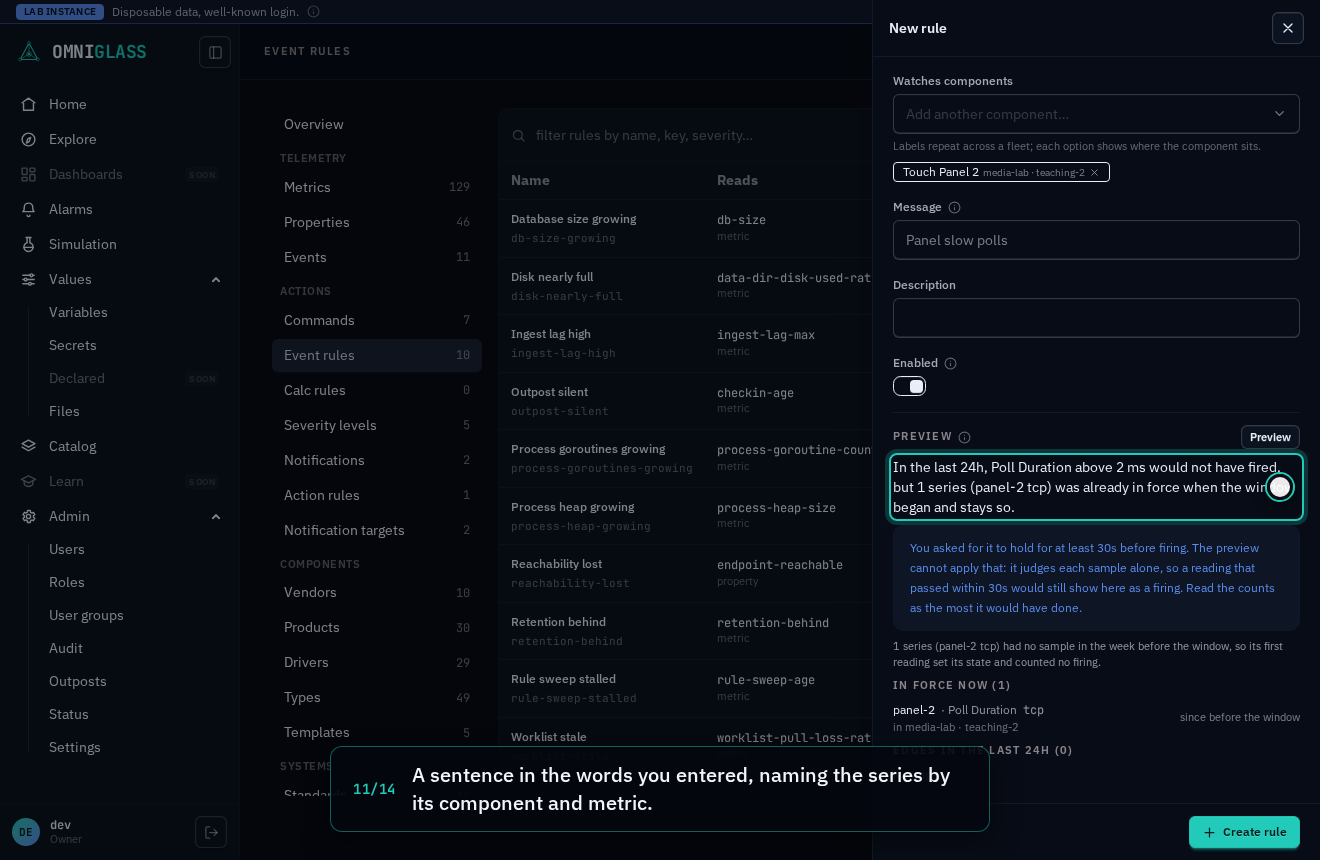
Preview, at the foot of the drawer, runs the draft against the last day of its key’s samples on the components you can read, without saving or writing anything. It opens with a sentence in the words you entered: In the last 24h, Temperature above 40 °C would have fired 3 times on 2 of 40 series (Display 1, Display 7) and cleared twice. Right now 1 series (Display 7) would be in force. Under it, where it would be firing (in force now) and the edges it would have written, fire and clear, newest last. Every series is named by its component and the metric, linked to the component, with where it sits.
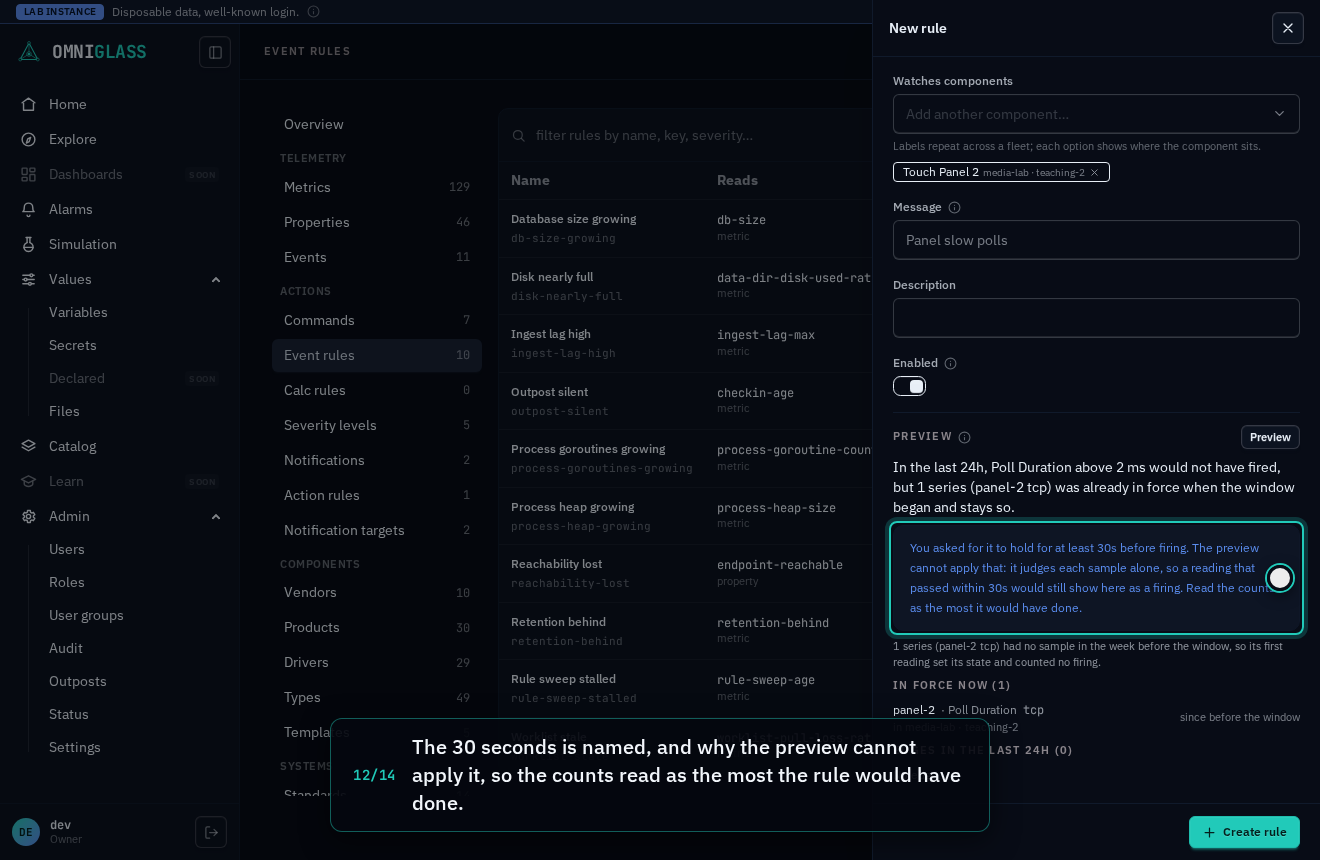
The preview judges each sample alone and cannot wait out a sustain. When you typed one (For at least or Clears after at least) it says so beside the sentence, in your words (You asked for it to hold for at least 30s before firing. The preview cannot apply that…), and the counts read as the most the rule would have done: a reading that passed within the sustain still shows as a firing. A series with nothing deciding in the week before the window started unknown, and the panel names those; on a fleet with more samples than the preview’s cap it judges whole series up to it and says how many of how many.
A preview refuses a trend rule’s criteria (those that read window or age):
it judges each sample alone, so it could only ever answer that a trend never fires.
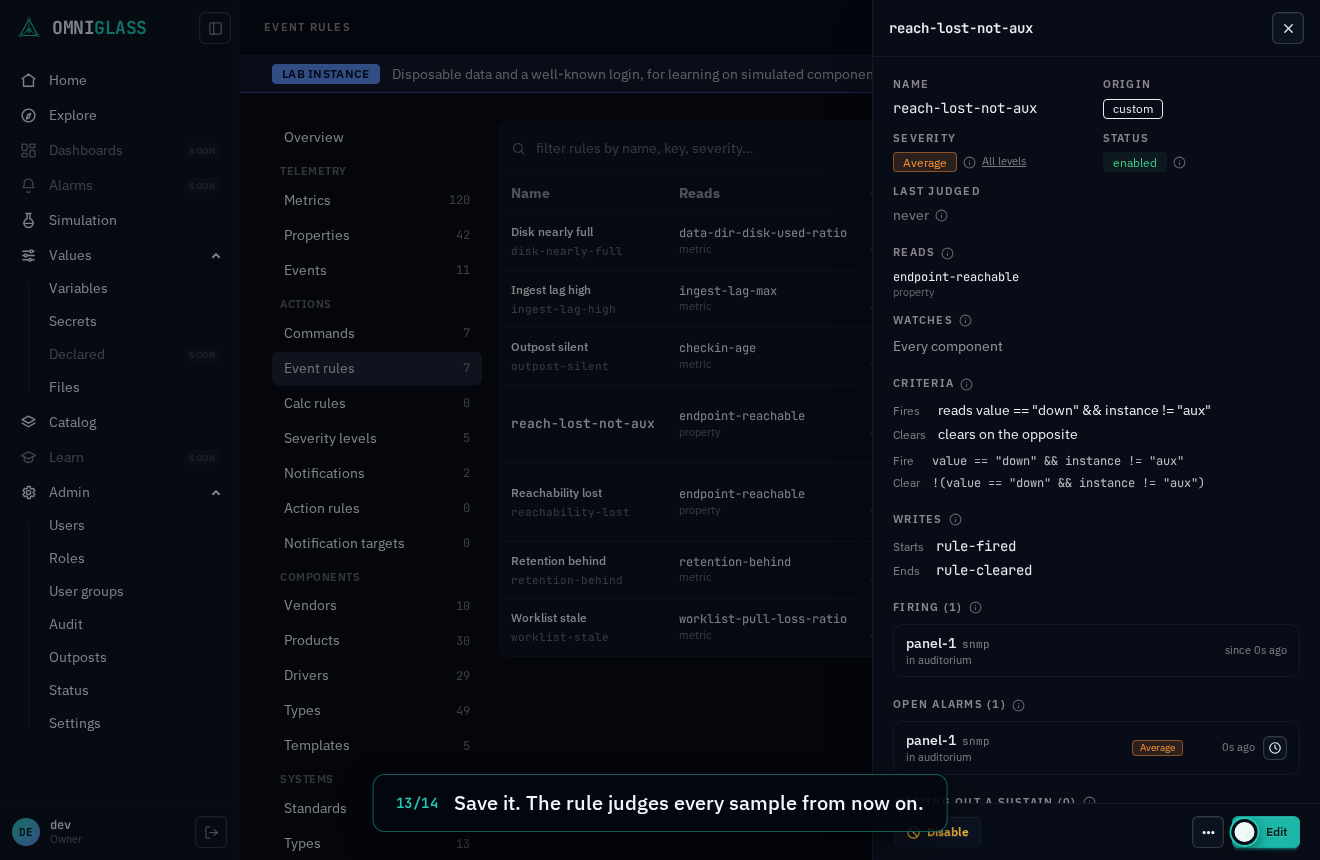
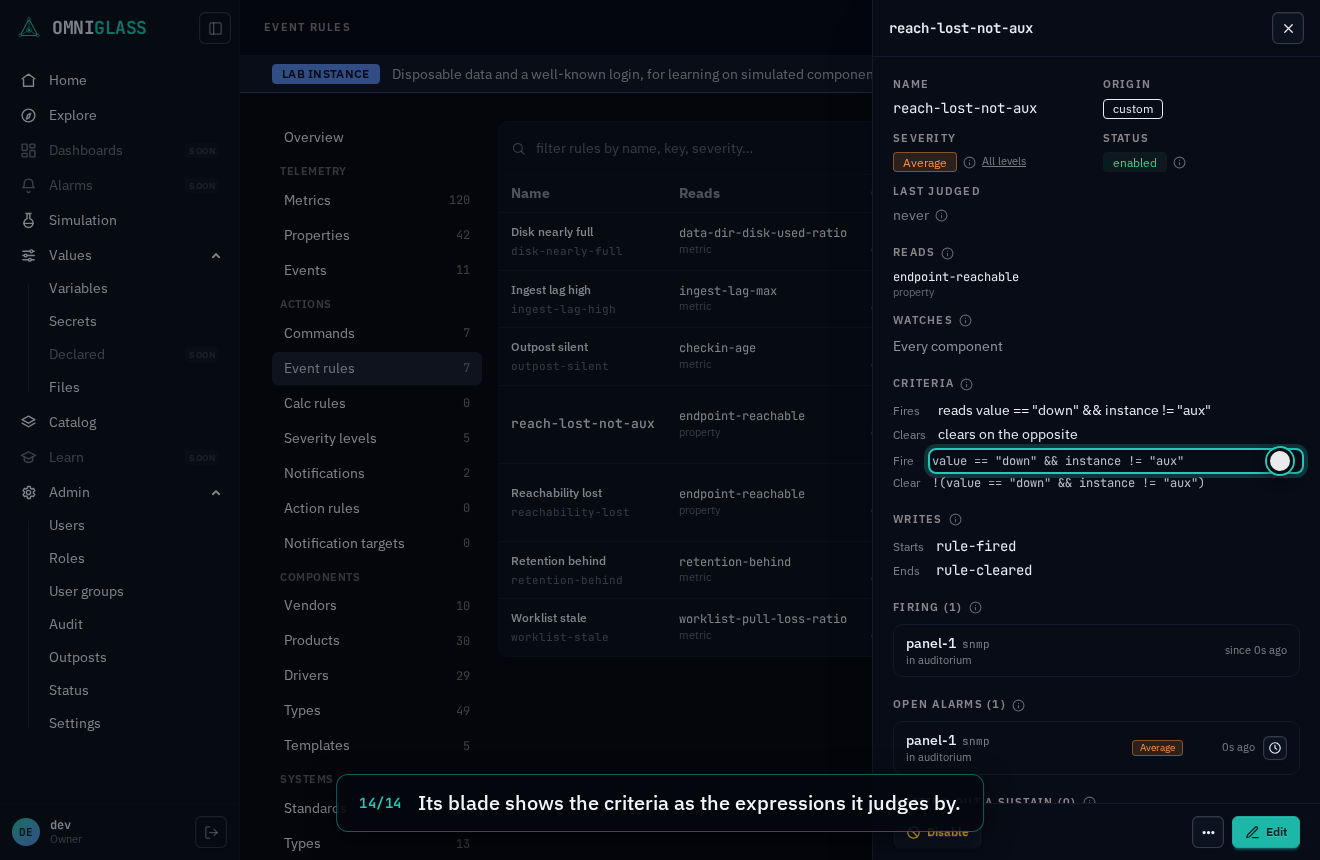
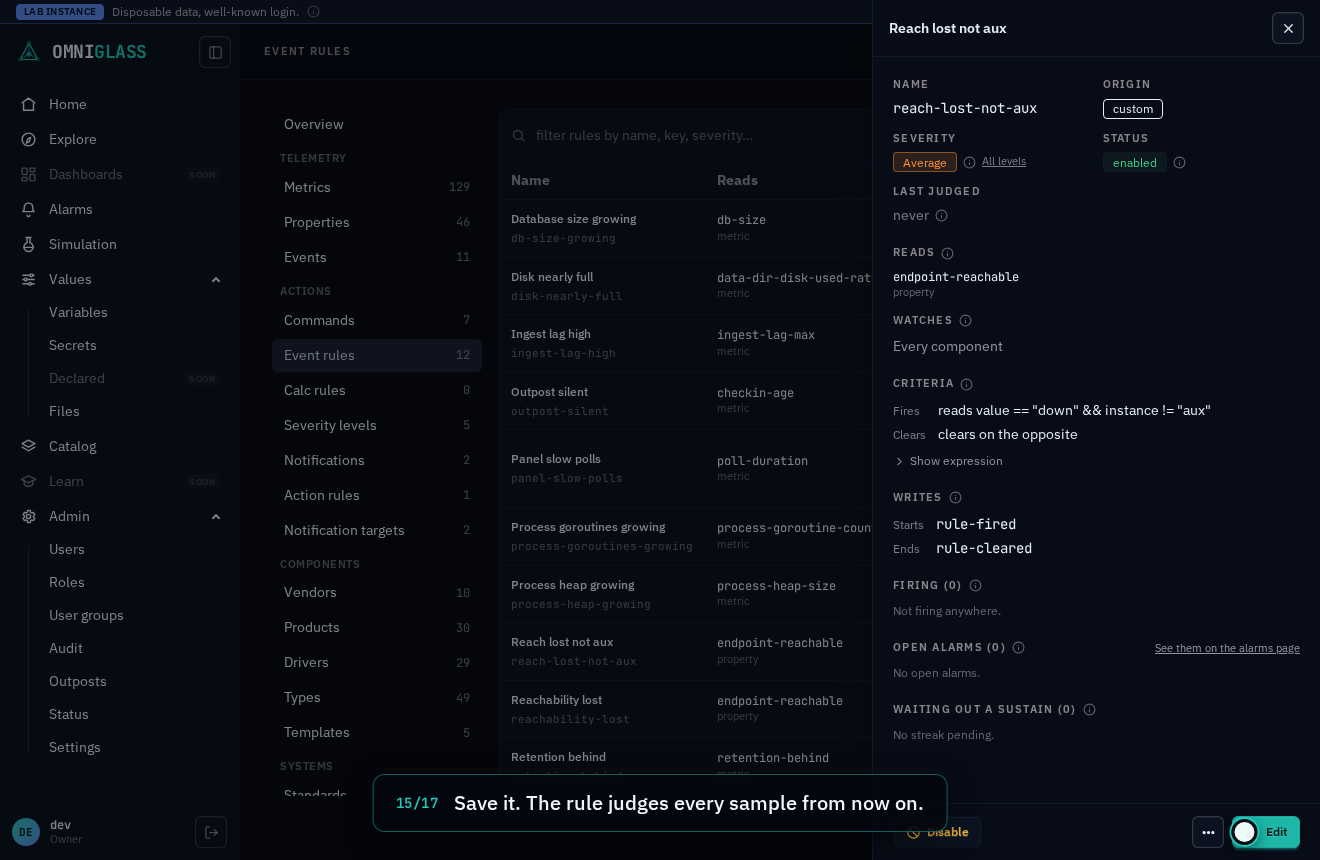
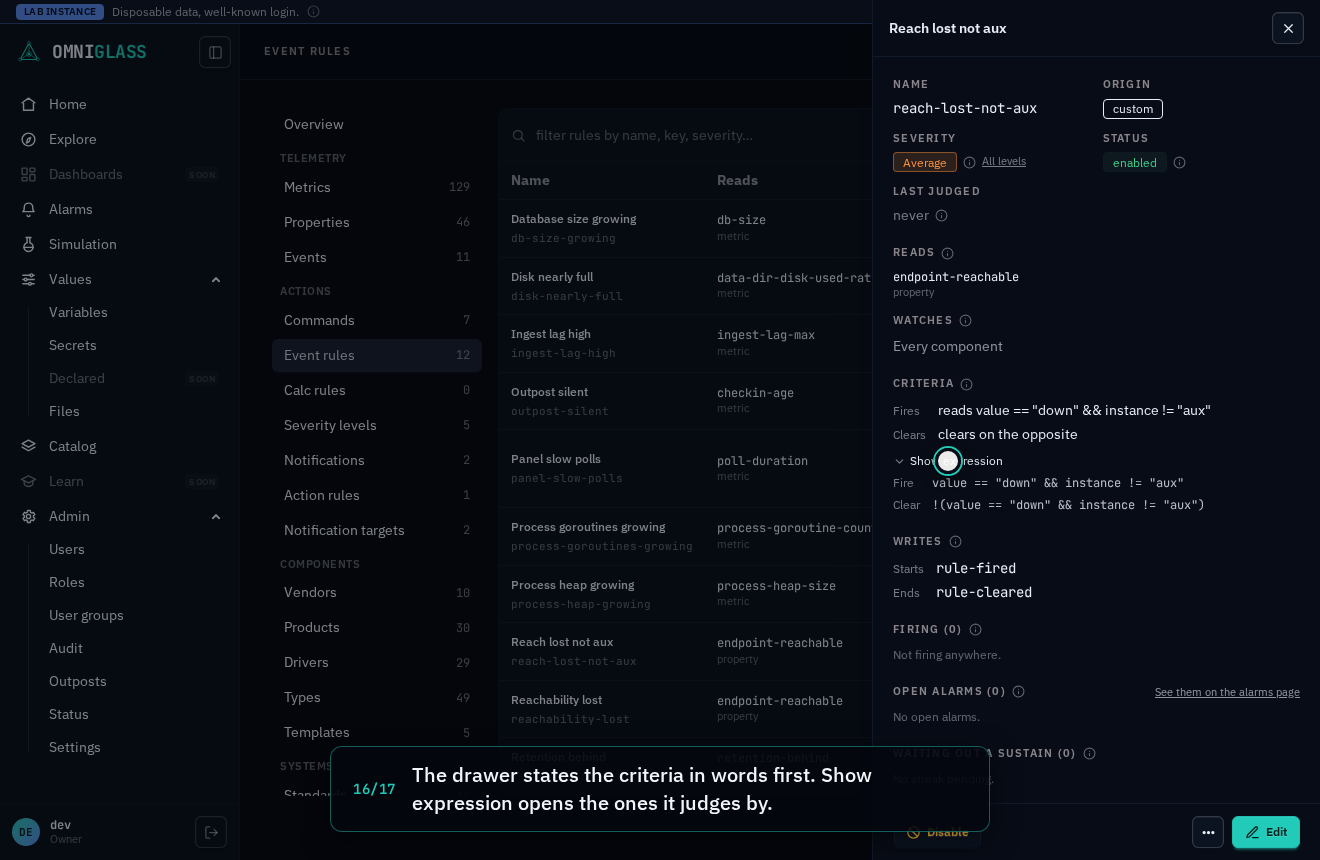
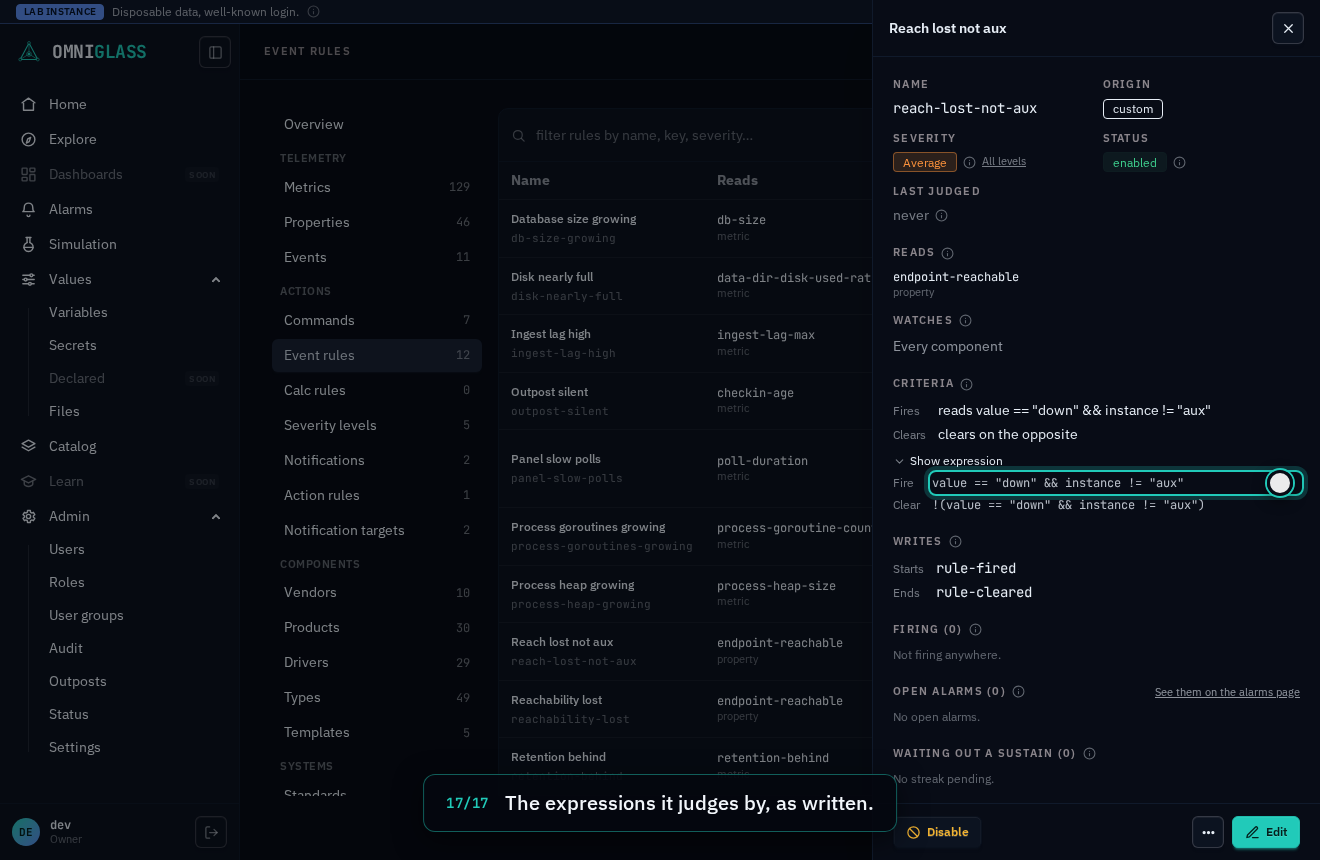
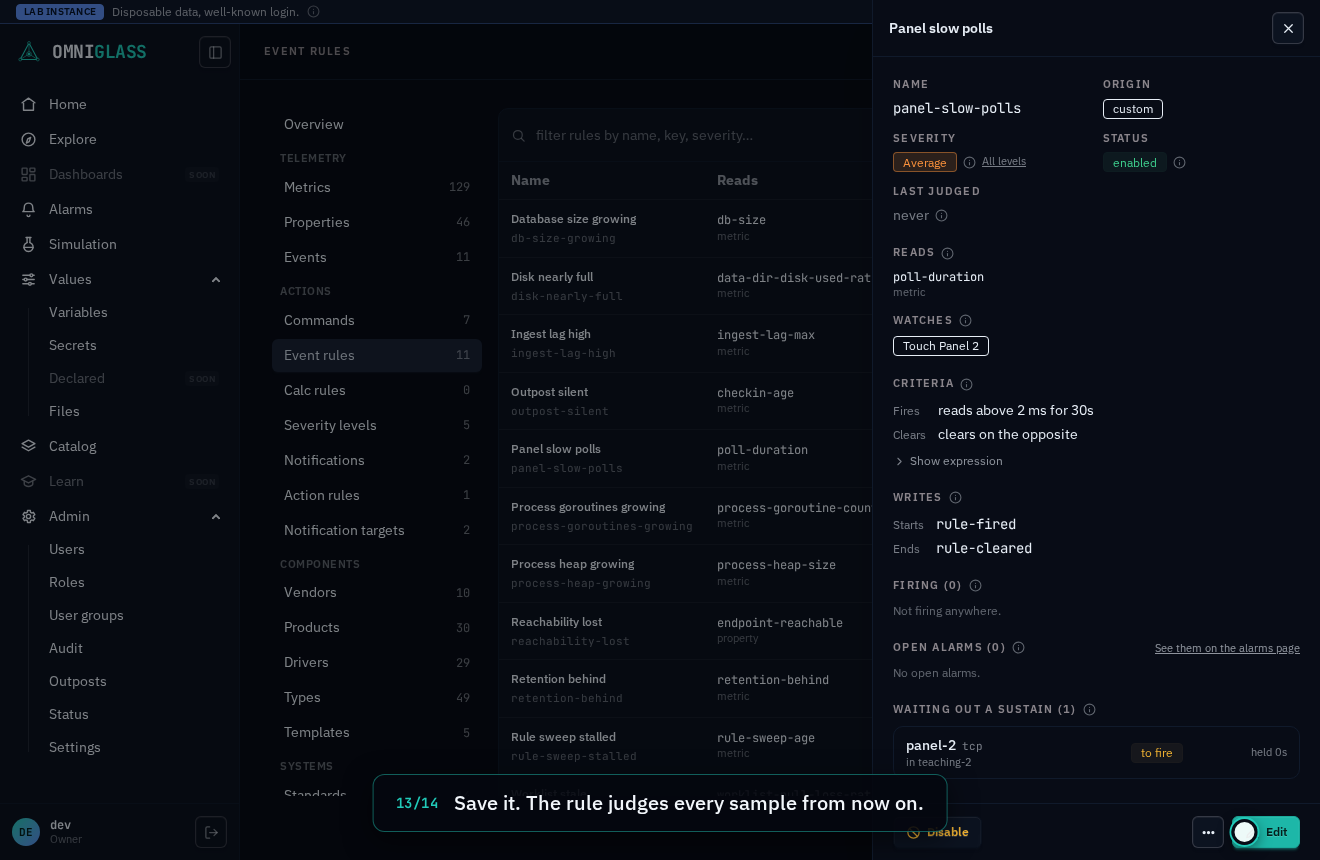
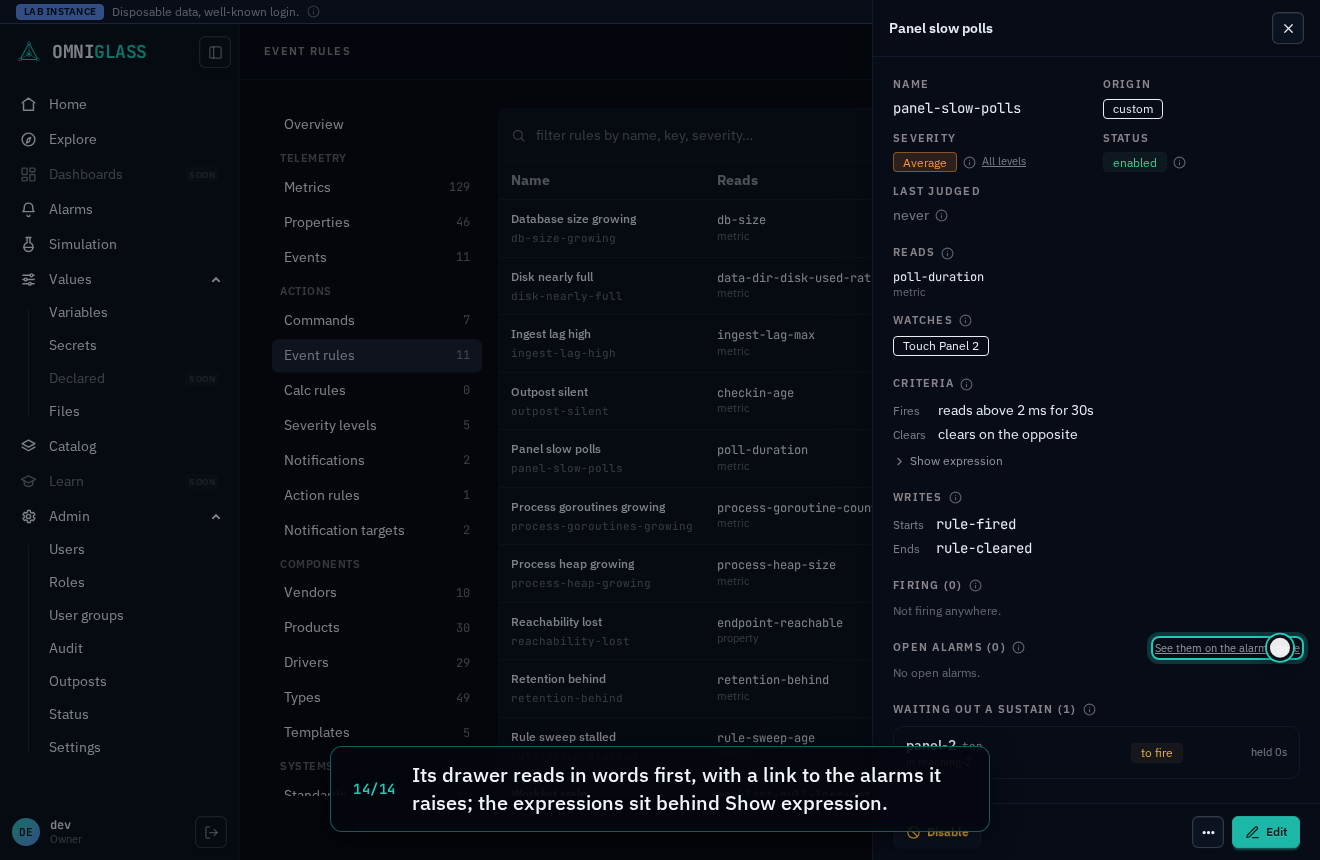
A rule’s blade states its criteria in words (Fires, Clears) and keeps the expressions it
judges by behind Show expression (an absent clear is !(fire)). Its Open alarms section links
to the alarms page narrowed to that rule, and each alarm on that page links back to its rule (the
rule’s name beside the message, and Raised by rule in the alarm’s drawer). The alarms page filters
the rows it has loaded by rule; narrowing on the server, and showing the rule’s cleared alarms too,
follow the alarm history work.
The walkthrough below writes a rule’s criteria as an expression: the builder’s comparison first, then the expression itself, an unfinished line pointed at, the fix, a preview of the last day, and the save.
Every step, captioned (17 steps)
Rules turn readings into firings and alarms. Start a new one.
New rule opens the drawer.
Name it, the address an operator types. A rename later moves only the name; its alarms hold the rule by uuid.
Find what it reads by typing. Each match shows its name and the kind it is, grouped as metrics and properties.
Move to the match you mean.
It reads whether an endpoint answers, which every component reports.
The builder compares one value. Beneath it is the expression it is stored as.
Write the expression itself instead, starting from the builder's own.
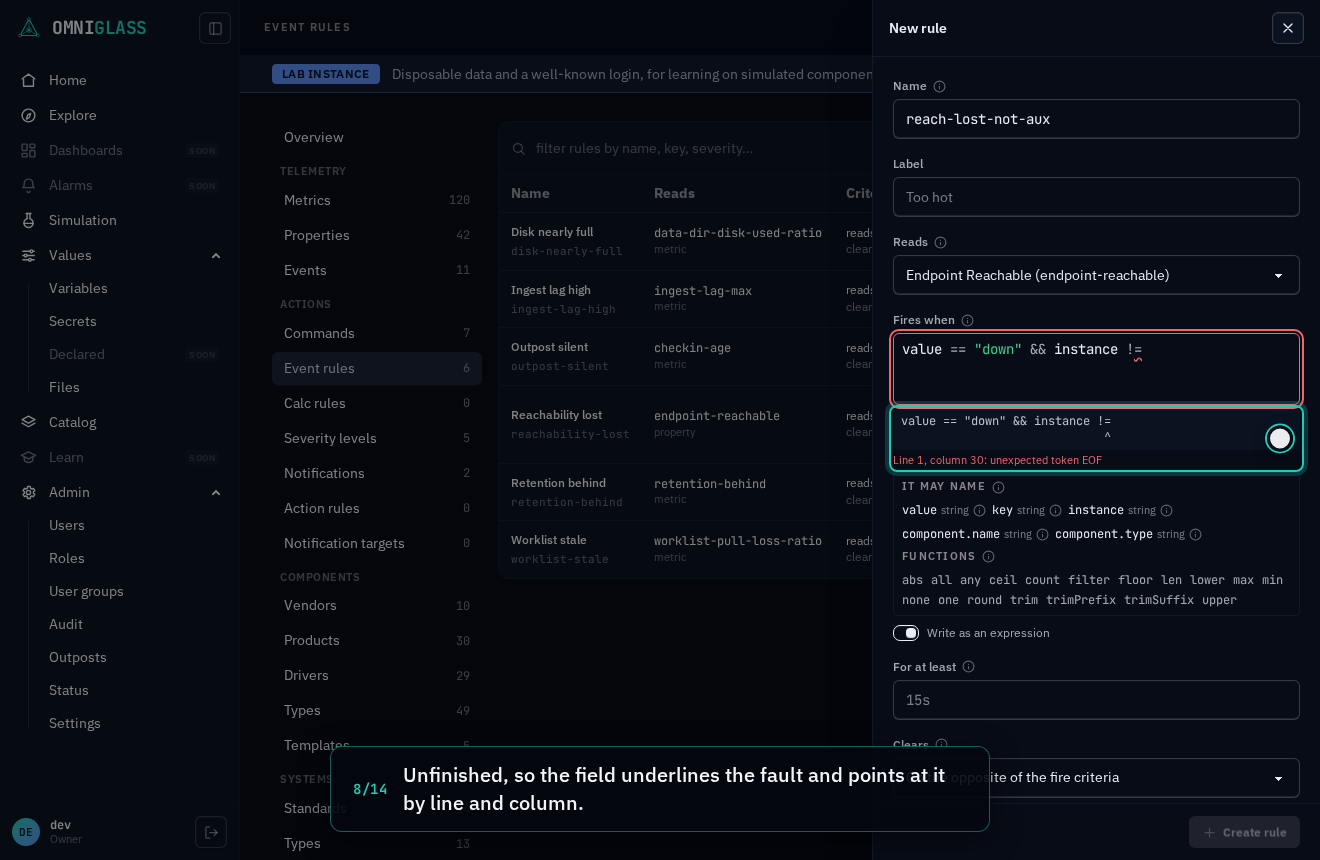
Leave the aux endpoint out. The field offers the names it may use, and checks the expression as it is typed.
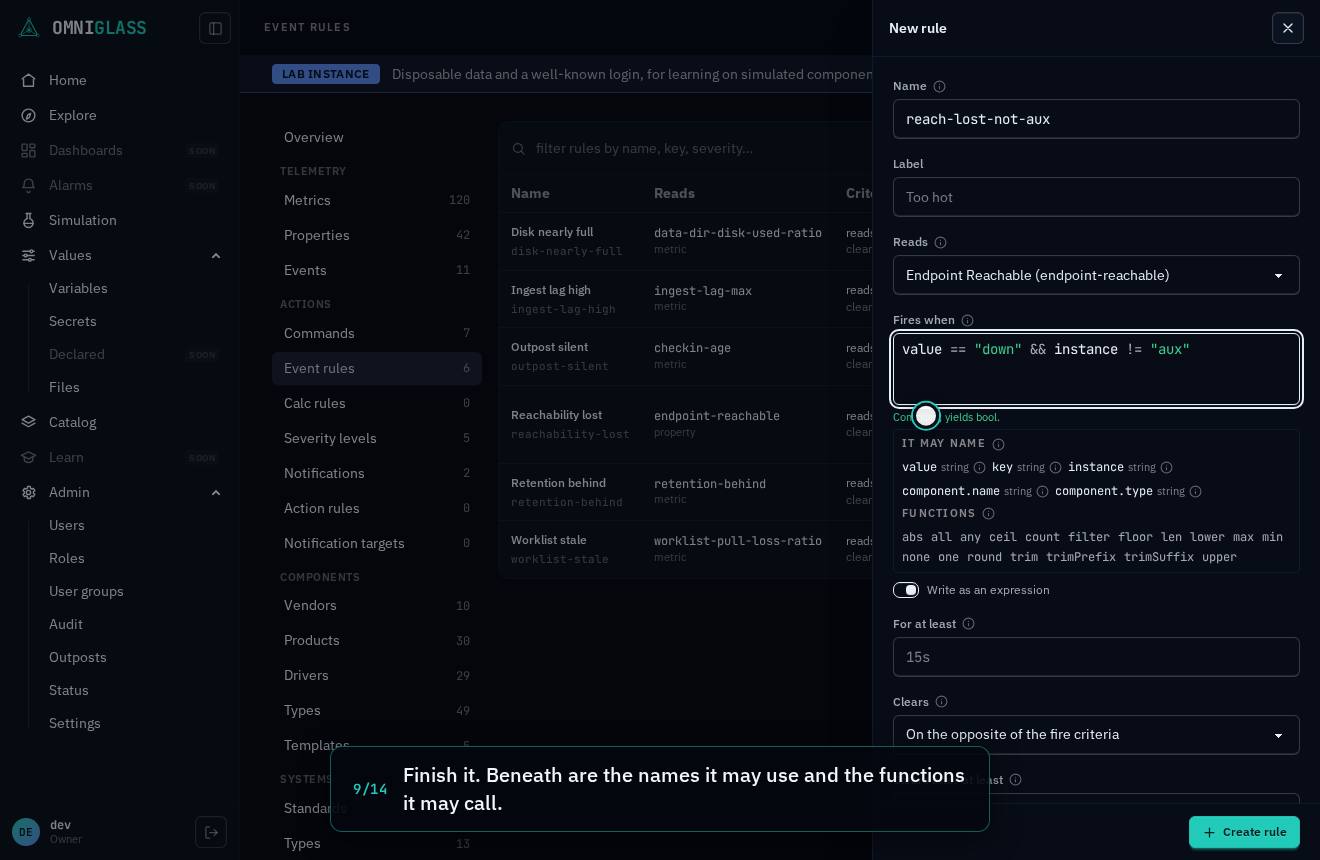
Unfinished, so the field underlines the fault and points at it by line and column.
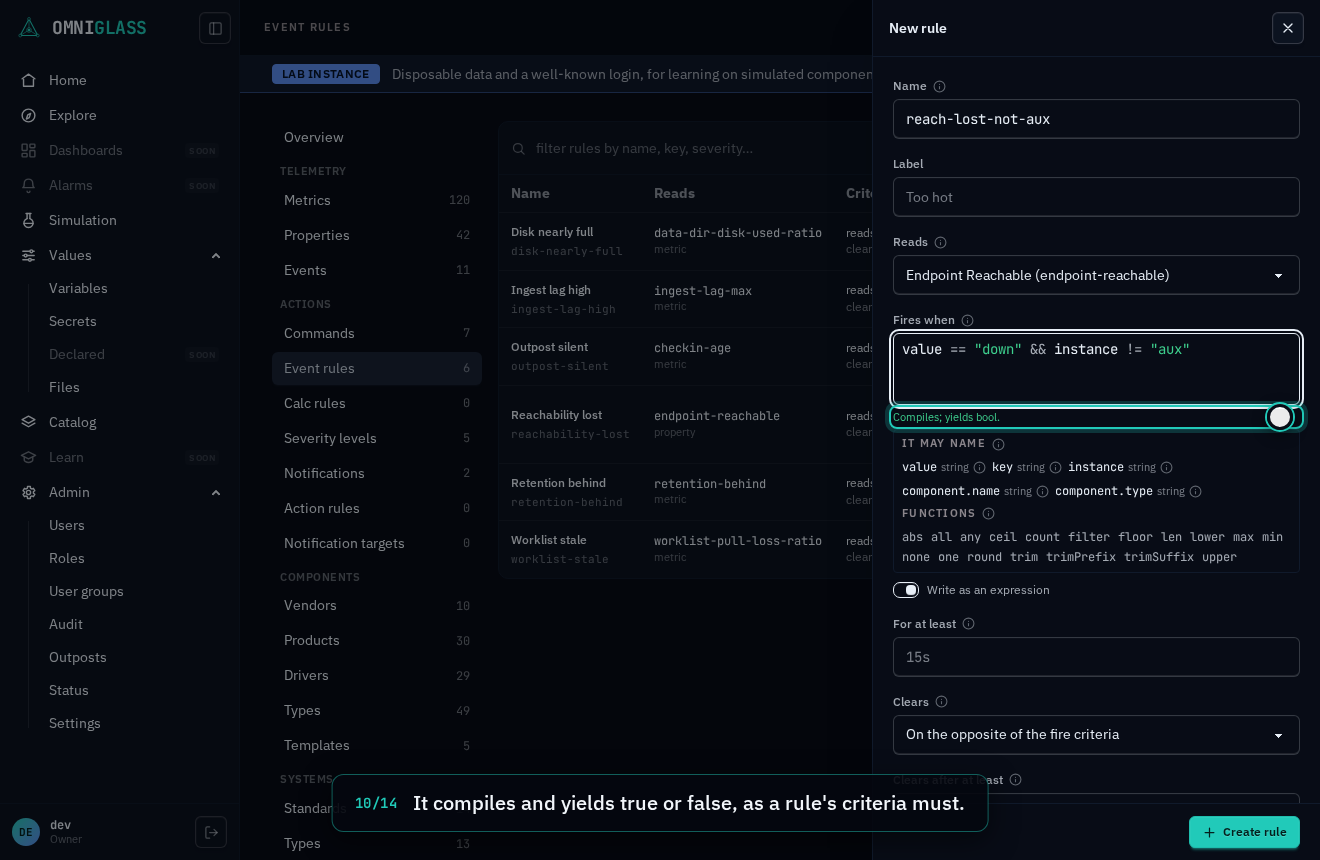
Finish it. Beneath are the names it may use and the functions it may call.
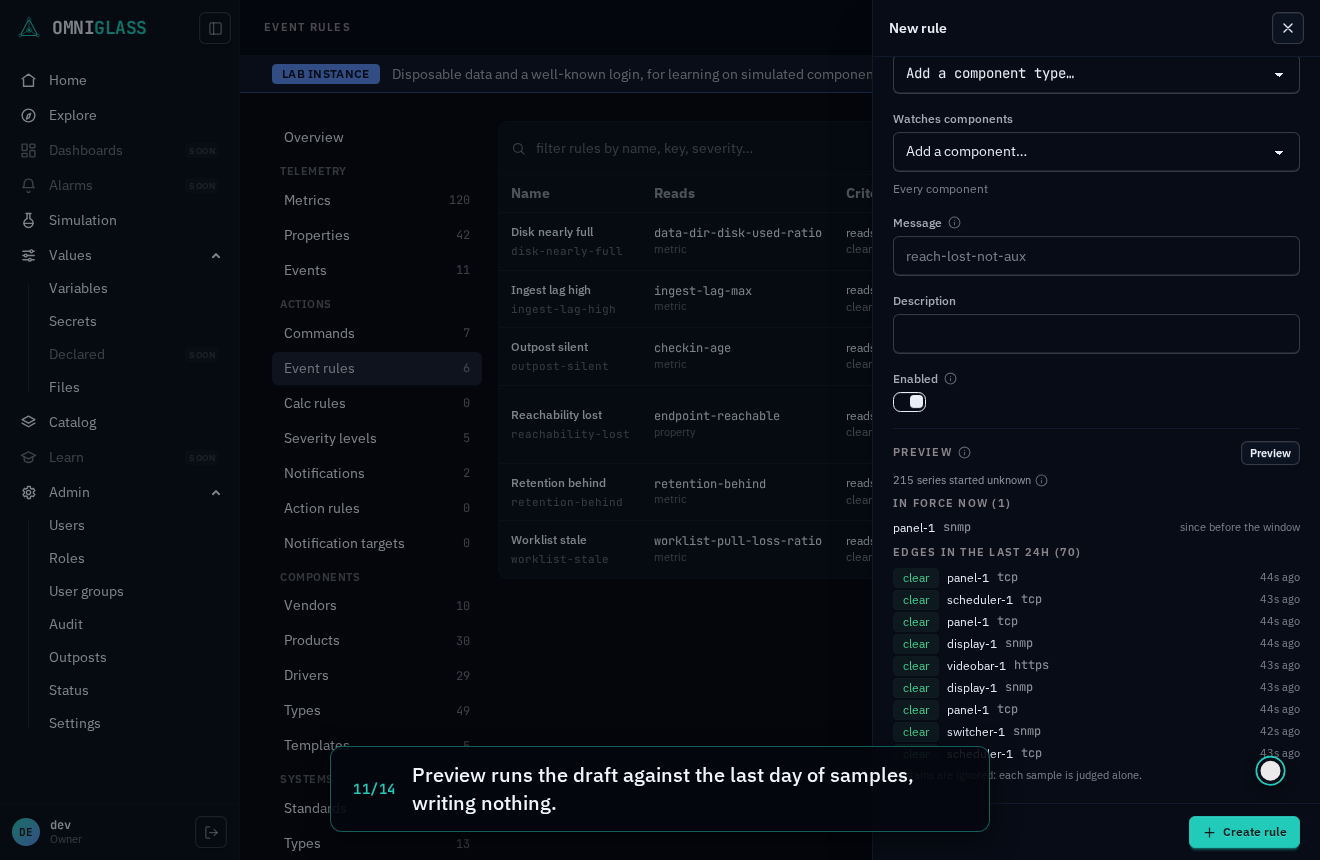
It compiles and yields true or false, as a rule's criteria must.
Preview runs the draft against the last day of samples, writing nothing.
In words, what the rule would have done over the day, with the series it names. A sustain you typed is named as not applied.
Save it. The rule judges every sample from now on.
The drawer states the criteria in words first. Show expression opens the ones it judges by.
The expressions it judges by, as written.
Alarm on this
Section titled “Alarm on this”A component’s page has an Alarm on this link beside each metric in its Vitals (with rule:create).
It opens New rule with Reads and Watches components already filled in, so only the
condition is left to write. The same form opens from any address of the shape
/event-rules?new=1&reads=<key>&component=<id>; the intent is read once and then removed from the
address, so a reload does not reopen it. Properties and the other places a component lists its keys do not have the link yet.
Every step, captioned (14 steps)
Touch Panel 2, with its vitals. Each metric has a way to raise an alarm on it.
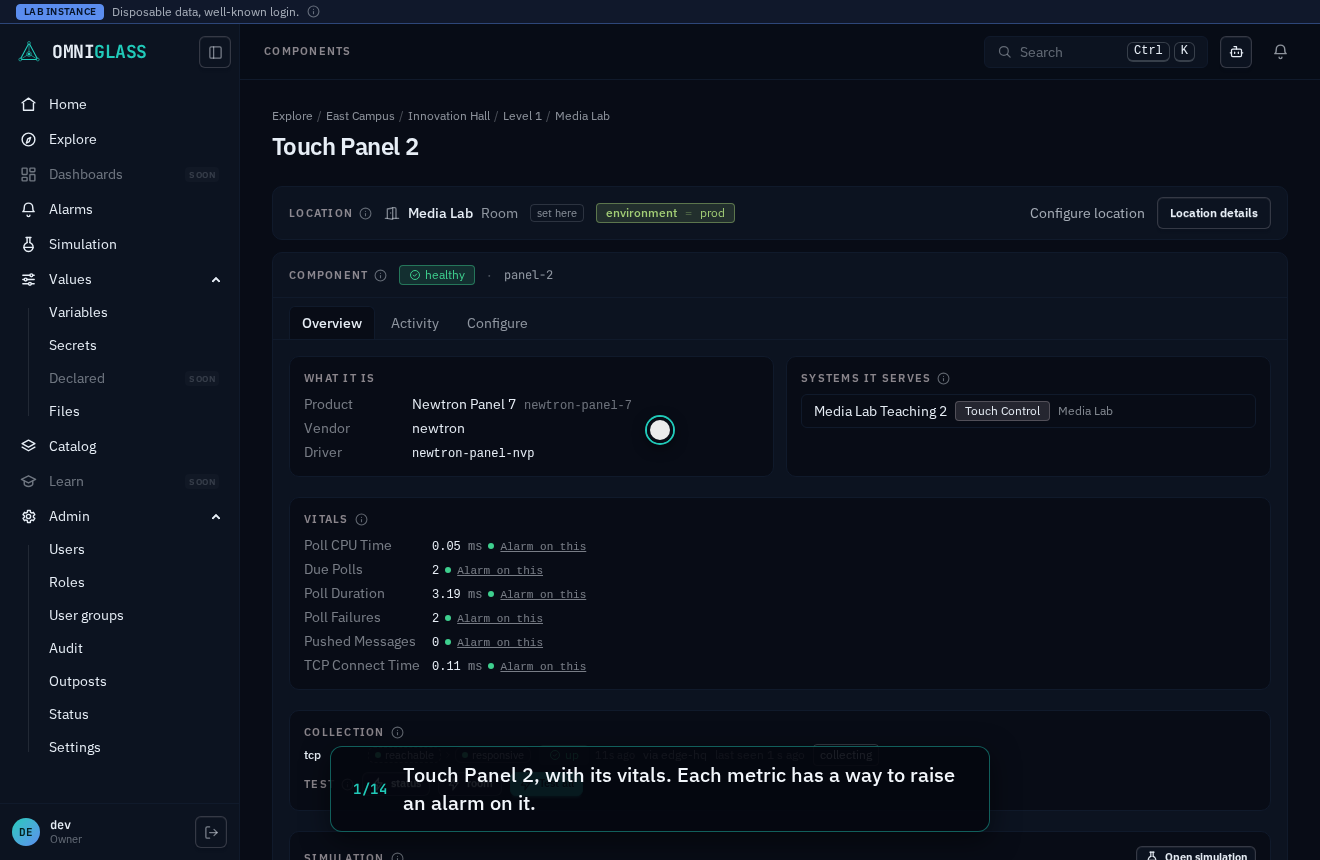
Alarm on this opens a new rule that already reads this metric on this component.
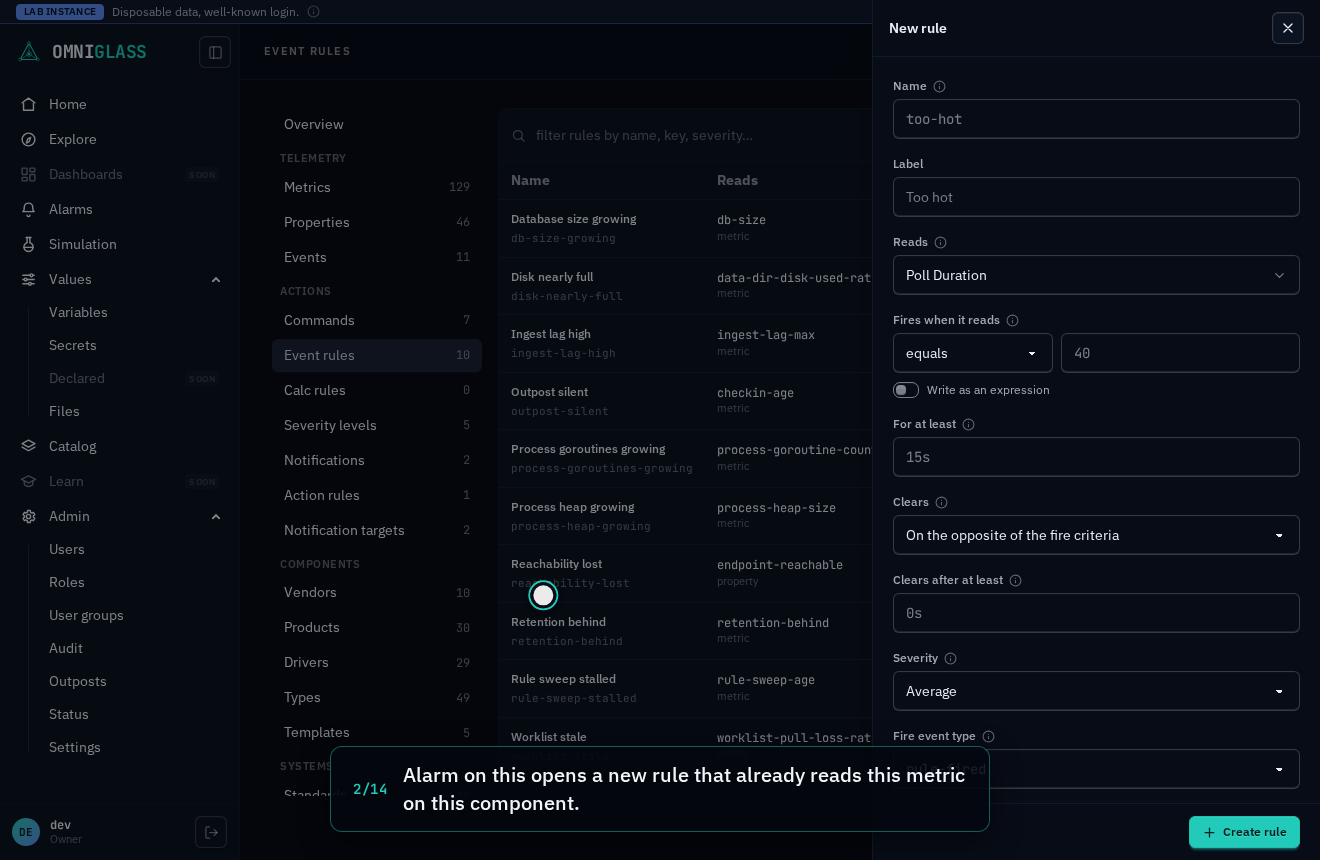
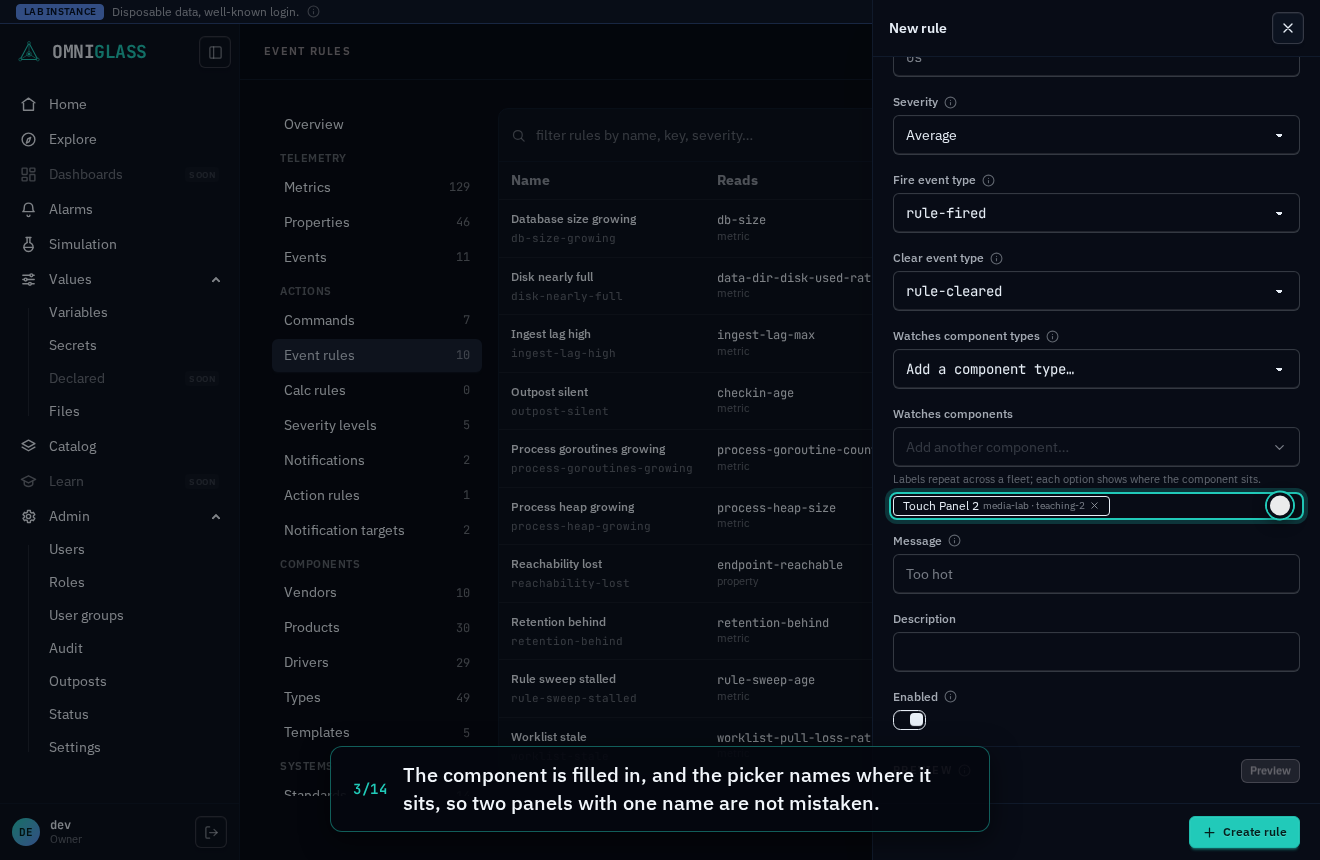
The component is filled in, and the picker names where it sits, so two panels with one name are not mistaken.
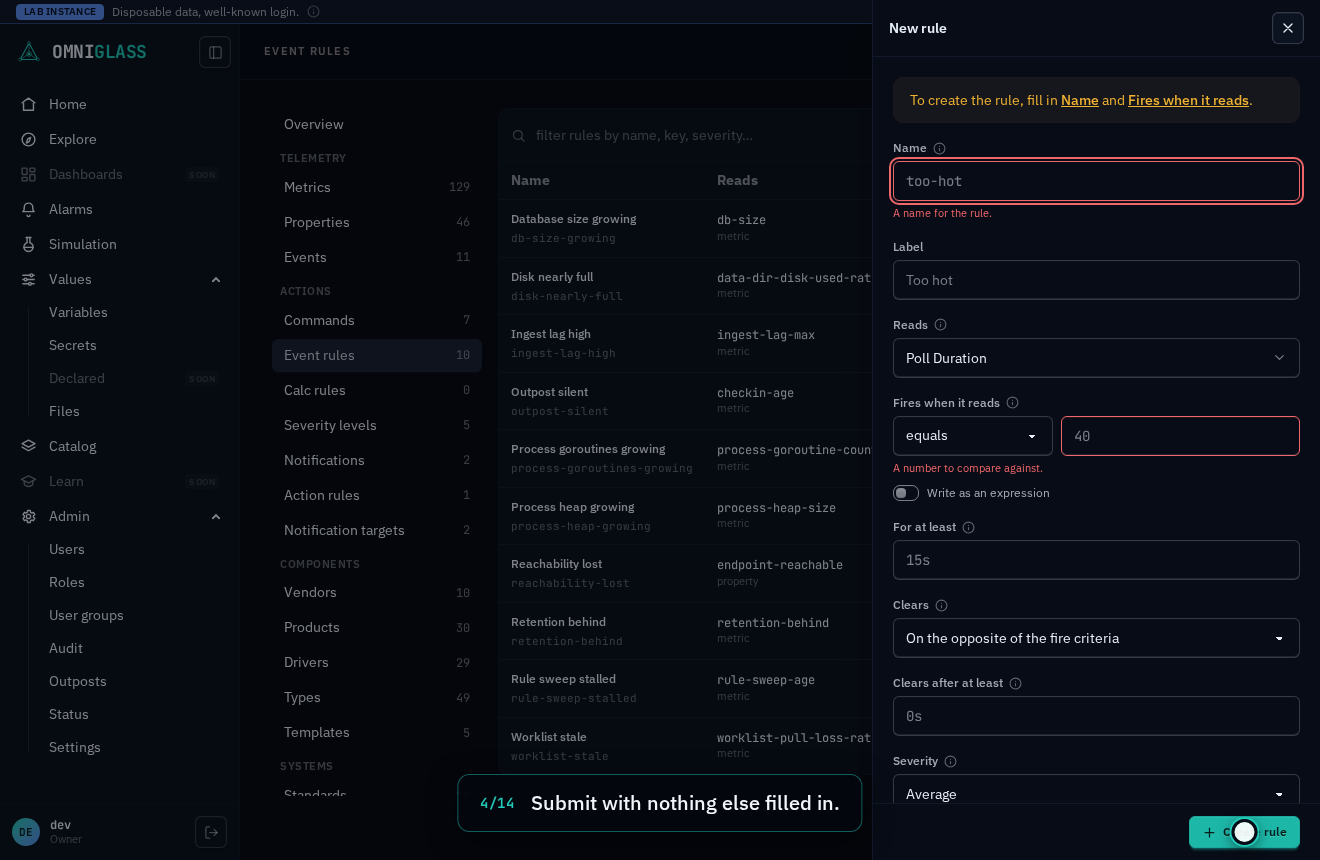
Submit with nothing else filled in.
The form says what is missing by name, puts the focus on the first, and each name is a link to its field.
Name it. The label beneath follows, in words, until you write your own.
Poll Duration is a number, so it can be compared any way.
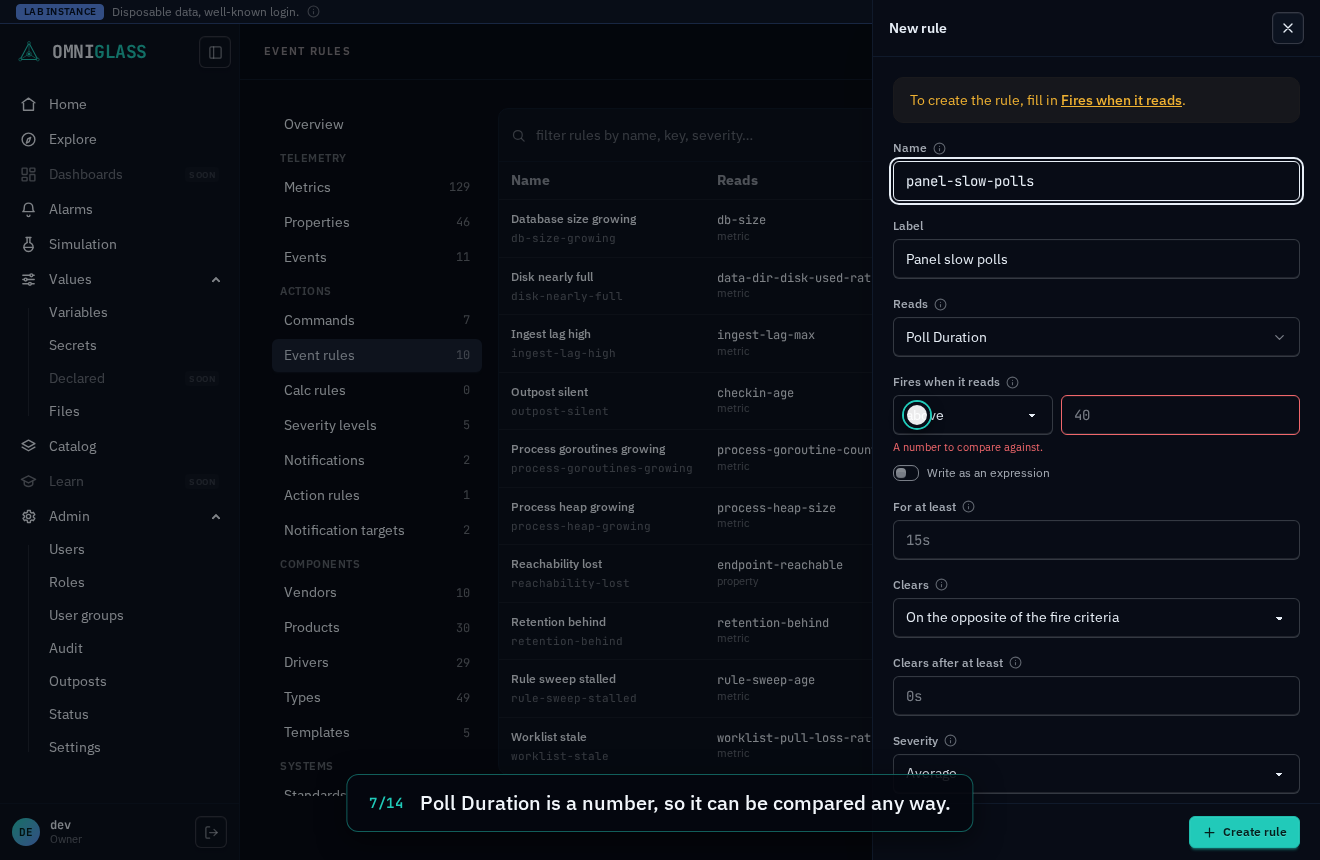
Fire above 2.
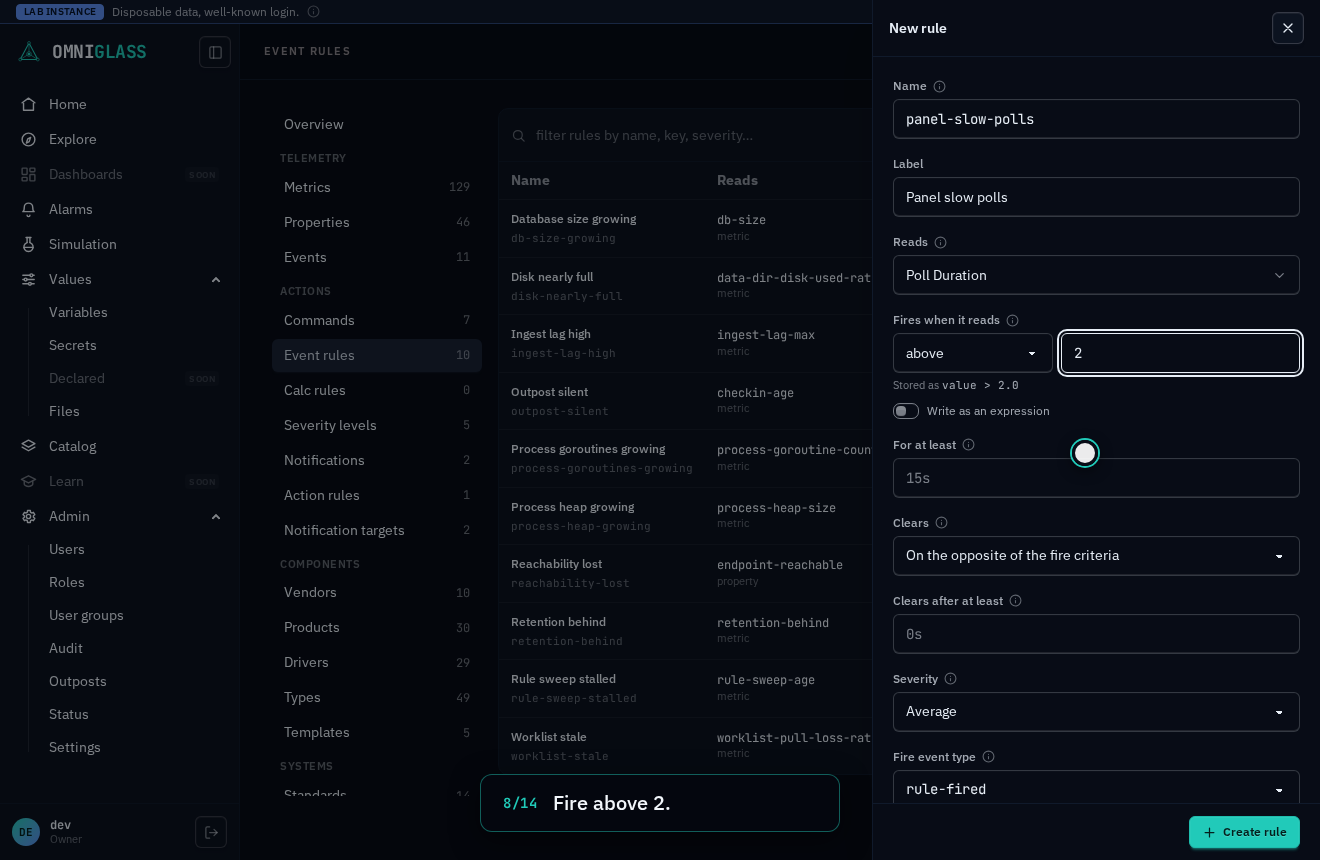
And only when it holds for 30 seconds.
Preview judges the draft against the last day of samples, writing nothing.
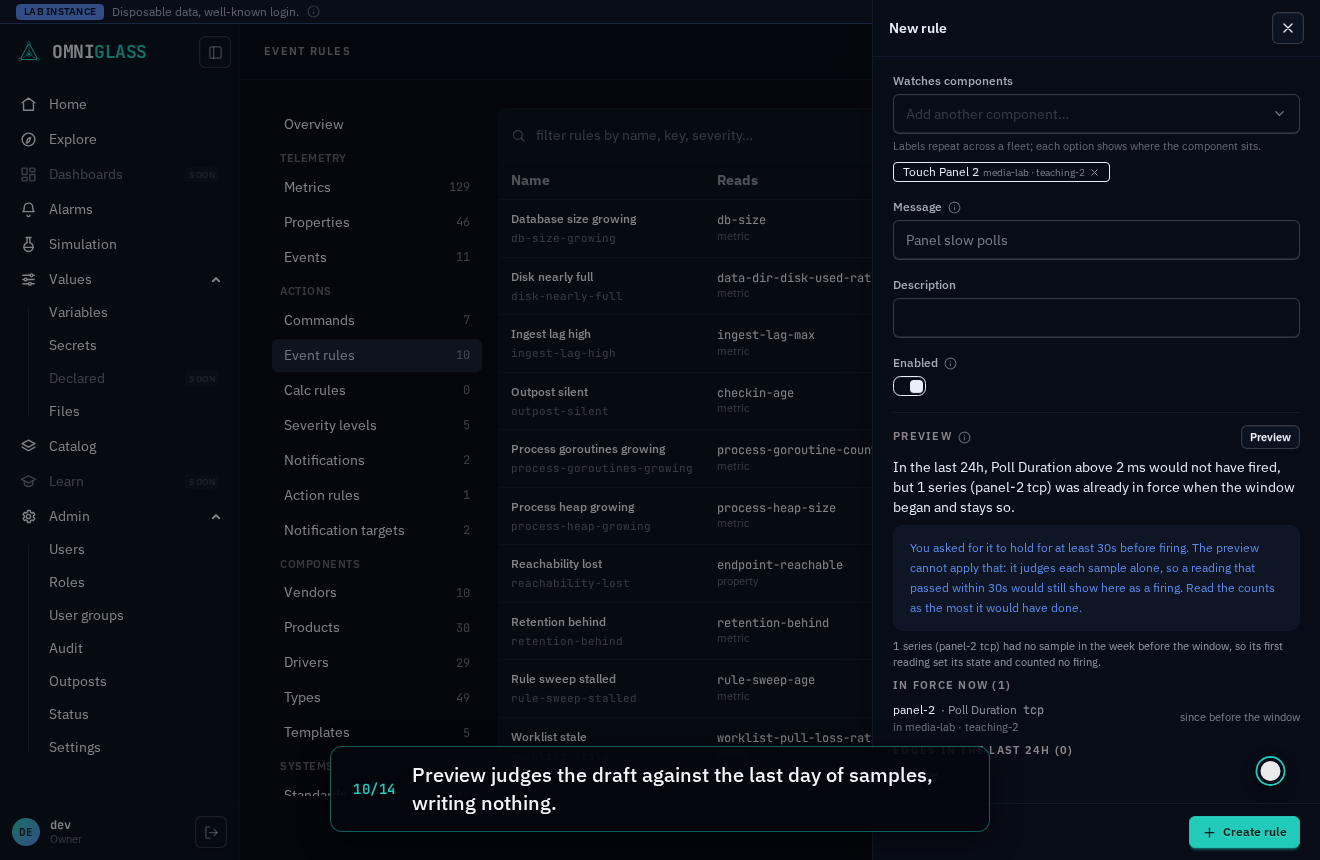
A sentence in the words you entered, naming the series by its component and metric.
The 30 seconds is named, and why the preview cannot apply it, so the counts read as the most the rule would have done.
Save it. The rule judges every sample from now on.
Its drawer reads in words first, with a link to the alarms it raises; the expressions sit behind Show expression.
Write a trend rule
Section titled “Write a trend rule”A rule on a metric can fire on where its series is heading rather than where it is: a heap that keeps
climbing, a database that keeps growing. Write it with the API or
the CLI (--sample-window 6h on the create command). Its sample_window (a duration up to a
week) is how much of the series’ history the criteria read, bound as window: the series’ points
over it, oldest first, in at most 360 even buckets. Three functions read it: span(window) is the
seconds the points cover, slope(window) the fitted rise per second, and growth(window) that rise
across the span as a share of the series’ level, so growth(window) > 0.25 reads “rose by more than
a quarter”, whatever the key’s unit.
A metric’s criteria also read age, how long the series has run in seconds: on a process’s own key
(its heap, its goroutines) the time since the process last started, on any other the time since the
series’ oldest sample still kept, so never more than the key’s retention (metric_days, 14 by
default). Gate a trend on it. A series that starts from empty, or refills after a restart, rises
steadily without anything being wrong. The shipped heap rule reads:
sample_key: process-heap-sizesample_window: 6hfire_criteria: { expr: 'age >= 86400 && span(window) >= 18000 && growth(window) > 0.25' }clear_criteria: { expr: 'growth(window) <= 0.1' }fire_sustain: 1hA rule whose sample_window its criteria never read, or criteria that read window with no
sample_window, is refused when you write it. A trend can move with no new sample, so the server
rejudges such a rule’s series on its periodic reconcile pass as well as on each sample. The
alarms page explains the
window, the age and the thresholds.
A worked example
Section titled “A worked example”A touch panel with two inputs reports the one it shows as its video-input property (hdmi1 or
hdmi2). To be told when one is switched to hdmi2, that is, off HDMI 1:
- New rule, name
input-moved, labelInput moved off HDMI 1. - Reads Video Input (
video-input); Fires when it reads ishdmi2; Clears on the opposite. - Severity a level that degrades rather than takes the panel out.
- Create rule.
Switch a simulated panel’s input (omniglass component simulation fire <panel> --surface nvp --command "SET INPUT hdmi2") and, on the next poll, the rule shows 1 open, the panel’s page
shows the alarm in the level’s color with the rule’s label as its message, and the panel itself reads
degraded (its system moves too if the panel fills one of its slots). Switch it back and it clears. On
a panel with more than two inputs, fire on is not hdmi1 instead, so any other input counts.
Firing, and what a rule writes
Section titled “Firing, and what a rule writes”A rule acts on edges, never on every sample. It fires on a component and endpoint once the fire criteria have held for the sustain, and clears there once the clear criteria have; while it is firing, the rule’s blade lists that firing under Firing with when it fired. At each edge the rule writes one event, which shows on the component’s and its system’s Activity, naming the rule (a link to its blade) and, when the rule raised or resolved an alarm in the same moment, carrying that alarm (its timeline opens in place). An event outlives its rule: once a rule is deleted, its events keep the name it had, shown as plain text marked (deleted) rather than a link to a blade that is gone. A firing that lasts across many samples writes one event, not one per sample.
Two behaviors follow from acting on edges:
- A hand clear holds until the rule clears and fires again. Clearing a rule’s alarm by hand leaves the firing and the events it wrote untouched, and further samples that still meet the fire criteria (a metric over its threshold on every poll included) do not reopen it. Once the value recovers the rule clears, and the next time it fires the rule raises a new alarm.
- Turning a severity on or off moves the alarms, not the firings. Giving an informational rule a severity raises alarms for the firings it already holds; setting a rule to None resolves its open alarms and keeps it firing. Neither writes a fire or clear event, since the rule did not move; the alarm’s own audit rows (on its timeline) record the raise or resolve and who edited the rule. One consequence: turning a severity off and back on raises an alarm again for every firing still held, including one whose alarm was cleared by hand.
Edit, disable, delete
Section titled “Edit, disable, delete”On a custom rule’s blade, Edit (with rule:update) reopens the drawer with every field, the
name included. Delete sits on the left of the blade’s footer, as on every other blade, and
Disable / Enable under More actions. Saving sends only what you changed, so a rule that still watches a component or component type
deleted since it was written stays editable: the form marks such an entry deleted (it matches
nothing by it) and you can remove it or leave it. Changing what the rule judges (its key, criteria, selector or sustains) starts its pending
streaks over and judges the newest samples again; changing its label, description, message or
severity or event types leaves them running. Narrowing what it watches clears its firings (each with
its clear event) and clears its alarms on the components it no longer selects. Disable stops
evaluation, clears every firing the rule holds with its clear event, and clears its open
alarms (each stays in its component’s history as cleared); Enable judges the newest samples at once, so criteria that
still hold start their sustain again. Delete (with rule:delete, behind a confirm) clears what the
rule holds open the same way and removes it; its past alarms stay in each component’s history, no
longer naming it.
Rename a rule
Section titled “Rename a rule”A changed Name in the Edit drawer renames the rule (rule:update on an all-scope grant, like
every rule write). Saving sends the other changes first and the rename last, so a name another rule
already holds is refused (and said so in the drawer) with the rest already saved. A rename moves only
the address: bookmarks and integrations that hold the old name stop finding it, which is the point of
renaming. Inside the platform nothing moves, since everything that refers to the rule holds its
uuid: its open alarms stay open and attached, it stays firing, a pending sustain keeps
counting, and the next recovery clears the alarm as it would have. A rename is not an edit of what the
rule judges, so its version does not change. An event keeps the name the rule had when it was written,
so after a rename an episode’s start event reads the old name and its end event the new one; both link
to the same rule. An official rule keeps its name, since the platform matches it to the shipped seed by
name.
Severity levels
Section titled “Severity levels”Catalog, under Actions: Severity lists the levels worst first: each one’s rank (higher is worse), how it looks (the chip every alarm at that level wears), its health effect (what an open alarm at it does to its component: none, degrades or outage), and its origin. The shipped levels, rendered from the seed:
| Level | Color | Rank | An active alarm at it |
|---|---|---|---|
info (Info) | gray | 10 | does not affect its component's health |
warning (Warning) | yellow | 20 | degrades its component |
average (Average) | orange | 30 | degrades its component |
high (High) | red | 40 | puts its component in outage |
disaster (Disaster) | darkred | 50 | puts its component in outage |
They are spaced apart, so a level of your own slots between two without renumbering; what a level does to its component is its declared health effect, not its rank (the table above marks each shipped level’s).
Add, edit and delete a level
Section titled “Add, edit and delete a level”New severity level (with severity_level:create) opens a drawer:
- Name: a lowercase kebab name (
major). Alarms and rules name the level by it. - Label: optional; what the chip says (
P2). Blank shows the name. - Color: one of the console’s palette. The chip beneath the field is the one every alarm at the level will wear.
- Rank: a whole number above zero that no other level holds. As you type it, the form says where it sits (Between Average (30) and High (40).).
- Health effect: none (an alarm is listed but its component stays healthy), degraded, or outage (the component stops filling its slots). It starts at the effect the typed rank would have had under the old floors; pick the one you mean.
A name or rank another level holds is refused as you type, before anything is sent. On an operator
level’s blade, Edit (with severity_level:update) reopens the drawer with every field, the name
included: renaming a level carries every alarm at it and every rule that names it; changing a level’s health effect
recomputes the health of every component with an open alarm at it, so a level moved from degraded to
outage takes those components out at once (a re-rank alone moves nothing). Delete (with severity_level:delete,
behind a confirm) is refused while an alarm or a rule still names the level, and the blade says so.
An official level is read-only: its blade footer shows the same “Official, read-only” note. Reading the levels
takes the permission on any grant, but writing one takes it on an all-scope grant, like a rule: a
level’s health effect moves the health of every component with an alarm at it, wherever it sits. A caller whose
severity_level permissions stop at one location sees no New severity level, and Edit and Delete greyed.
The same writes from a terminal:
omniglass severity-level listomniglass severity-level create --name major --label Major --color orange --rank 35omniglass severity-level update major --label "P2"omniglass severity-level delete majorThe colors a level may take are listed under --color in the
CLI reference, generated from the API.
From the CLI and the API
Section titled “From the CLI and the API”Every console action is the same API call, with the same checks (see the CLI reference and the API reference for the full flags and bodies):
| Console | CLI | API |
|---|---|---|
| List | omniglass event-rule list | GET /event-rules |
| Open a rule | omniglass event-rule get <name> | GET /event-rules/{name} |
| Its live state | omniglass event-rule state list <name> | GET /event-rules/{name}/state |
| New rule | omniglass event-rule create | POST /event-rules |
| Edit, Disable, Enable | omniglass event-rule update <name> | PATCH /event-rules/{name} |
| Rename (Edit, the Name field) | omniglass event-rule rename <name> --name <new> | POST /event-rules/{name}:rename |
| Delete | omniglass event-rule delete <name> | DELETE /event-rules/{name} |
The worked example from a terminal, with criteria as JSON and sustains as durations. A criterion is
an expression, {"expr": "..."}, over the sample: value, key, instance, and component with
its name and type (alarms and actions names each). The
short form {op, value}, the comparisons the API reference lists for op, still works and is stored
as the expression it means; a rule always reads back as its expression.
omniglass event-rule create --name input-moved --label "Input moved off HDMI 1" \ --sample-key video-input --fire-criteria '{"op":"eq","value":"hdmi2"}' --severity averageomniglass event-rule create --name slow-to-answer --sample-key icmp-rtt-avg \ --fire-criteria '{"expr":"value > 200 && instance != \"aux\""}' --fire-sustain 2m \ --clear-criteria '{"op":"lt","value":100}' --clear-sustain 5m --severity warning \ --selector '{"component_types":["display"]}'omniglass event-rule update slow-to-answer --enabled=falseomniglass event-rule rename slow-to-answer --name rtt-highomniglass event-rule state list input-movedA key that is not a registered property or metric, a criterion that does not compile (an unknown
name, or a result that is not true or false; the 422 names the criterion, line and column), or a
severity level that does not exist is refused with a 422; a name already taken is a 409 (on create and
on rename); an official rule refuses every write, a rename included, with a 409. Every write is audited,
and every write answers the rule with its id, the handle a client keeps across renames.