

Sign in and your profile
BuiltSigning in
Section titled “Signing in”Sign in with your username and password. On success the server sets an httpOnly session cookie (the browser never exposes a token to scripts), and the cookie rides on every request for the rest of the session. Sign out from the menu in the sidebar footer, which revokes the session and clears the cookie.
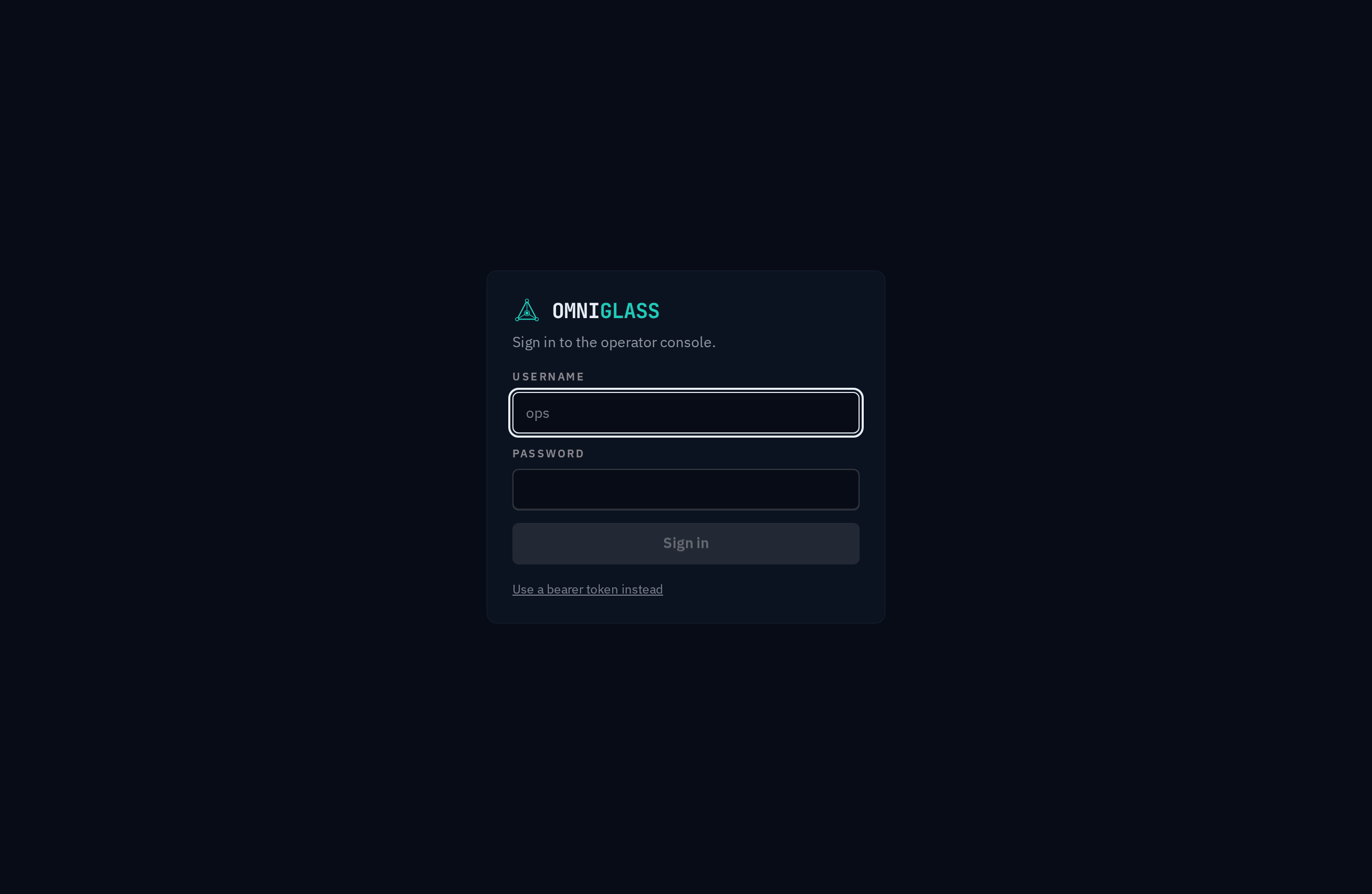
The login screen also has a “Use a bearer token instead” toggle: paste a token (for a
machine user, or an operator who works from the CLI) and the console authenticates with the
Authorization header rather than a password. Either path lands you in the same console.
Signing in with single sign-on
Section titled “Signing in with single sign-on”When an administrator has connected an identity provider (Entra ID, Okta, Google, Keycloak or any OpenID Connect provider), the sign-in screen leads with Sign in with SSO. It sends you to the provider; you sign in there as you do for your other work apps, and the provider sends you back signed in to the console with an ordinary session, exactly as a password sign-in gives you.
The provider says who you are as two parts, its issuer (the provider’s address) and your
subject there (an id it never reuses), written iss|sub. Omniglass signs you in only when that
identity is linked to your account. Nothing links by email: an address is only as trustworthy as
whoever controls it at the provider, so a matching email signs no one in. If yours is not linked yet,
you land back on the sign-in screen saying so; an administrator links it from your person page, or you
link it yourself from your profile (below).
Other refusals come back the same way: a sign-in started in another browser (which is how a forged sign-in link is stopped), one that took longer than ten minutes or was already used, the provider turning you away, an answer from the provider that did not verify, or an account an administrator disabled. A disabled provider or a provider that cannot be reached leaves password sign-in working.
A refusal carries only a short code back to the page (?sso_error=unlinked, for one), and the page
shows its own fixed message for each code; any other value there shows one generic message. So
a link someone crafted can never put words of its own on the sign-in page. The detail stays on the
server: each refusal is one sso: sign-in refused line in the server’s log, with the code, the
reason, and, where the provider vouched for one, the identity (the iss|sub an administrator
links). A refused self-link from your profile lands back on your profile the same way.
Your session through SSO is the ordinary 12-hour session. Omniglass asks the provider again every 15 minutes (the default) whether you may still sign in, and when it refuses (you left the organization, or an administrator there revoked your sessions) every session and API token you made through it ends at that check, not the moment you were removed. If the provider gives Omniglass no way to ask again (it issued no refresh token), the session lasts an hour instead and you cannot mint an API token from it.
The first owner is created on the server with
omniglass bootstrap <username> --password <password> (see the CLI guide).
Your profile
Section titled “Your profile”Click your name in the sidebar footer to open Your profile. It is self-service: you edit only your own account, whatever your role.
- Profile. Change your label; it drives how you appear in the console (the sidebar label and the initials avatar). Your username and email are set by an administrator, not you, and are shown read-only.
- Profile picture. The avatar at the top of the panel shows your picture when you have one and your initials when you do not. Upload picks an image file (JPEG, PNG, or WebP); the server crops and re-encodes it to a small square, so it reads the same everywhere you appear (the sidebar and the Users directory). Remove clears it and falls back to initials. Like the rest of the page it is self-service: you manage only your own picture.
- Change password. Enter your current password and a new one. The new password must meet the policy (at least 12 characters, not a common password, and not containing your username); the field validates as you type, and Generate fills a strong random one you can Copy. A wrong current password is refused. Changing it signs out your other sessions (the one you are using stays, and your API tokens are kept, a token not being tied to your password), so the change takes effect on your logins at once.
- Access. A read-only view of the identity model you operate under: your user, the roles granted to you, and the flattened permissions those roles carry (closed under Permissions (N), the count; open it for the list). The server enforces these on every request; the console only mirrors them.
- Single sign-on. Shown when a provider is connected or you already have a link: the identities at the provider you sign in through, each its subject and issuer, who made the link and when it last signed you in. Link your identity asks for your current password (a link outlives the session that makes it), then sends you to the provider: sign in there as the identity to link and you return here with it listed. This is the only way an owner gains single sign-on, since no one may link another owner. Unlink also asks for your password and ends every session and token you signed in through that identity.
- Sessions and API tokens. Two sections listing every credential you hold: a session is a
device you signed in from, a token one you minted for the CLI or API, both time-bounded and
showing an expiry. Each row shows a device (parsed from the browser that created it), the
address it came from, and when it was last active; a token also shows its description. The
one you are using is marked This session. The secret is never shown, only its
ogp_locator. Revoke any you do not recognize (revoking the one you are using is Sign out), or use Revoke all on either section to end every session or every token at once, keeping the one you are on. Create token on the API tokens section mints you a new token: give it a description (what it is for, required) and an optional lifetime in days (default 90, maximum 365). The token is shown once, so copy it then; it cannot be retrieved again.
From the CLI the same actions are omniglass auth update-profile, omniglass auth change-password,
omniglass auth set-avatar / omniglass auth remove-avatar for the picture,
omniglass session list / session revoke <session-id> / session revoke-all for your sessions, and
omniglass auth create-token --description <what-for> to mint one for yourself, and
omniglass auth me identity-link list / unlink for your identity links (see
the CLI guide).
After an administrator resets your password
Section titled “After an administrator resets your password”If an administrator resets your password, you sign in with the password they gave you and the console immediately gates you to a Set a new password screen: your account is on hold and every other page is refused (by the server, not just the console) until you choose a new password. Enter the temporary password as the current one and set a new policy-compliant password; once it is saved the hold clears and you land in the console. Signing out is the only other way off the screen.